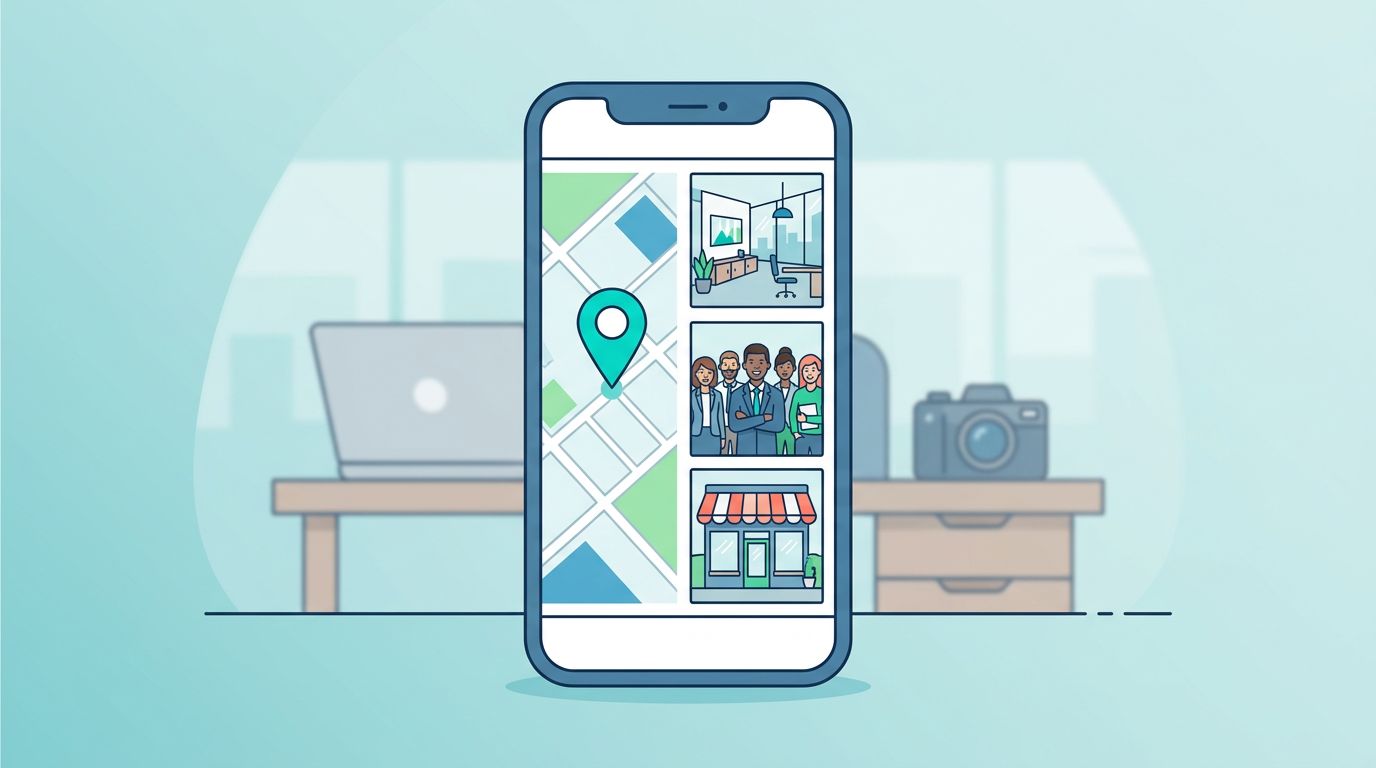
If Google requests a Google Business Profile video verification, do not treat the process like a guessing game. It is about providing proof rather than achieving high production quality.
Google wants to see that the business is real, located where the profile claims, and managed by someone with actual access. When those three points are clear on camera, your approval odds improve significantly. Focus your video recording on providing clear proof of existence for your company before you upload the file.
Key Takeaways
- Record one live, continuous video using a mobile device while signed into the correct Google account.
- Show three things clearly: where the business is, what the business is called, and that you have the authority to manage it.
- Match your profile details to real-world evidence, including signage, address details, and official business documents.
- Footage should be tailored to your specific business model, whether you operate a physical storefront, a service-area business, or a home-based operation.
- If your initial attempt fails, address any missing requirements before you retry, and ensure your Google Business Profile, website, social media, and lead capture tools remain active while you wait for the results of your video verification.
What Google is checking in 2026
In 2026, video verification is often Google’s default option for a new or edited listing. The video recording must be live, unedited, and uploaded from your mobile device through the Business Profile flow. A prerecorded file, desktop upload, or stitched clip can get rejected fast because Google specifically requires an unedited recording to confirm the legitimacy of your submission.
Google is usually checking two things. First, does this business exist where the profile says it exists? Second, does the person submitting the video have authority to manage it?
That means your video needs to show the business location, the business name, and real access. Good proof includes street signs, building numbers, storefront signs, branded vehicles, work equipment, a POS system, or unlocking a staff-only door. For official guidance, review Google’s verification overview.
Your details also need to line up. If the profile name is stuffed with extra keywords, or the address differs from your website, invoices, and citations, Google has more reason to pause the listing. Maintaining a precise location is essential for local SEO, Google Maps visibility, and newer AI-assisted discovery inside Google Maps.
Google can change requirements over time, so treat every submission like a compliance check, not a loophole.
How to record a video that gives Google clear proof
Before you begin, log into your Google Business Profile dashboard and click the Get verified button to start the process. You do not need a script, but you do need a plan.
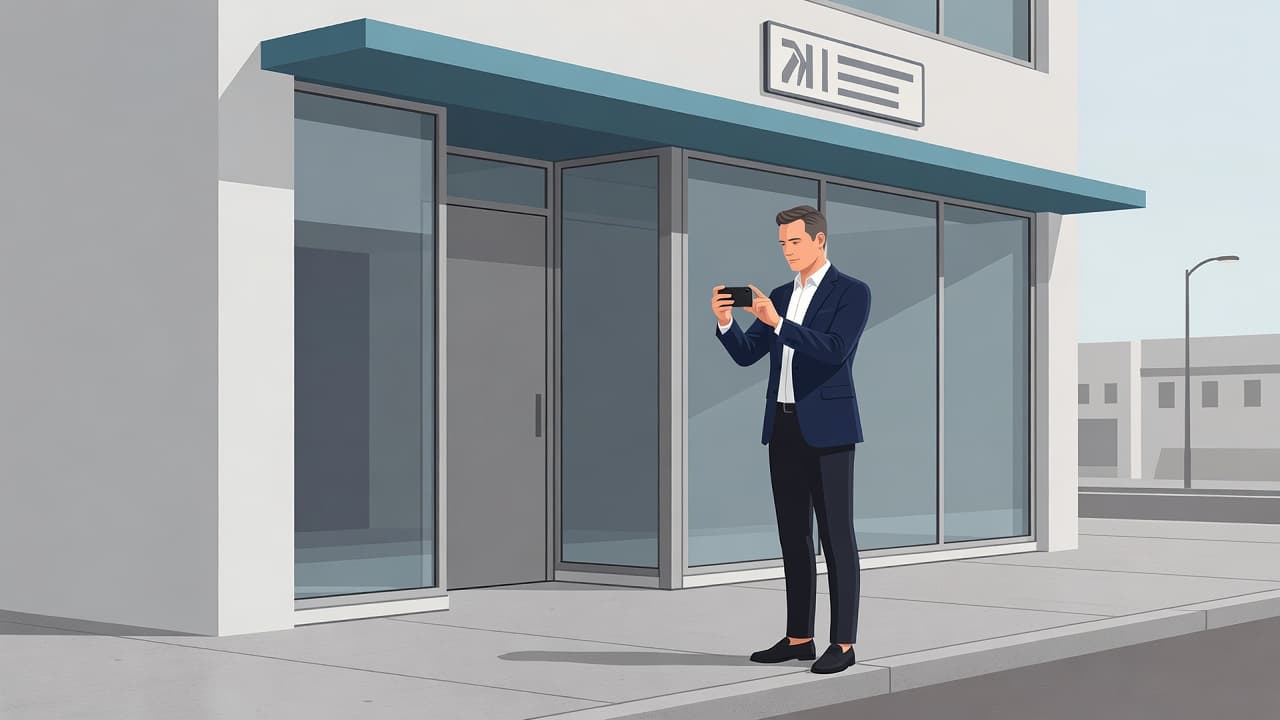
Use the Google account that owns or manages the profile. Turn on location services, make sure your signal is stable, and record onsite. Google guidance and current industry reports point to a minimum of 30 seconds, with many successful videos landing in the 30 to 90 second range. Keep it under five minutes. Remember that high camera quality is less important than clear visibility of your business details.
A simple flow works well:
- Begin outside and show the street, street signs, building number, or neighboring businesses.
- Move to the business sign or branded exterior that matches the profile name.
- Continue to proof of access, such as when you unlock the door, open a work vehicle, use the register, or enter a restricted area.
- End with your tools of the trade, including inventory, scheduling systems, or workspace details that fit your category.
Don’t try to make it cinematic. Google wants proof, not polish.
Keep the phone steady. Good lighting helps. If you show documents, frame them carefully so the business name and address are visible without exposing bank numbers, tax IDs, or personal data. Avoid filming customers unless their presence is necessary and you have permission.
A practice walk-through helps. This video verification guide from Odd Dog Media makes the same point: weak footage is often a planning problem, not a Google problem.
What acceptable footage looks like by business type
The best video depends on how the business operates. A storefront business, a service-area business, and a home-based consultant should not all submit the same footage.
This quick comparison helps set the standard.
| Business type | Good footage | Weak footage |
|---|---|---|
| Storefront business | Street sign, building number, permanent signage, entrance unlock, interior workspace, register, tools, inventory | Parking lot only, temporary banner, no access shown, no interior proof |
| Service-area business | Branded vehicle, tools in vehicle, street signs, work equipment, invoices or permits that match the business, access to storage or dispatch tools | Unbranded car, empty lot, no tools, no business records, only a laptop screen |
| Home-based business | House number, street sign, dedicated workspace, business equipment, storage, admin access, branded materials if used | PO box, virtual office, kitchen table with no business proof, no address markers |
For a storefront business, think in plain terms. Show the outside, show the name, then show that you can open and operate the place. A salon might unlock the door, pan past chairs and stations, and show the booking terminal. A repair shop might show the sign, bay access, and tools in use.
For a service-area business, the vehicle often does heavy lifting. A roofer, locksmith, or mobile pet groomer should show a branded vehicle, work gear, and local street context. If your public address is hidden, Google may still want the underlying location tied to the account. Providing official documents, such as utility bills or permits, can help establish clear proof of management.
Home-based businesses need extra care. Do not show a virtual office, shared mailbox, or random room with a laptop. Show the real operating space, equipment, and management access. Focus on the specific business location, and if you have fixed branding, include it. If you do not have branded signage, your proof of management and access to the workspace must be especially clear.
If you want a visual example, this pass-first-try walkthrough on YouTube is a helpful reference.
Common mistakes that get video verification rejected
Most failed submissions during the video verification process come down to missing proof or mismatched details. The video may look professional, but the evidence is often insufficient.
A few problems show up over and over:
- The video recording has cuts, pauses, or was uploaded from the wrong device.
- The Google Business Profile name doesn’t match the signage, website, or official documents provided.
- The address points to a PO box, virtual office, or location without real business markers.
- The footage fails to provide clear proof of management access.
- The footage is dark, shaky, or moving too quickly for the reviewer to read necessary details.
- Sensitive personal data is visible on paperwork that should have been redacted.
- The business recently made major edits, like category, address, or name changes, without updating the rest of the web to reflect those updates.
Small inconsistencies matter more than many owners expect. A missing suite number, an old business name on a utility bill, or a service-area setup that doesn’t match the business model can slow approval or trigger a rejection.
If you are verifying multiple locations, do not recycle one pattern blindly. Record the actual branch being verified. Corporate office footage will not prove a specific satellite location.
What to do if verification fails and how to retry
A rejection does not always mean the business is ineligible. It often means Google still cannot connect the dots.
Start by reviewing the profile against real documents. Check the business name, address, phone number, category, and website. If anything differs, fix the mismatch first. Then, record a new video that covers the missing proof. Do not send the same vague clip again and hope for a different outcome.
For many businesses, the cleanest retry is to make the video more literal. Show the street sign longer. Hold the camera steady on the building number. Open the locked door on camera. Let the branded truck and tools stay in frame so there is no doubt about the business location. If you manage the business from home, show the workspace and access more clearly.
If you are still blocked, use Google’s support path from the Business Profile account and keep your case details together. The Local Search Forum thread on failed video verification is useful when you want to compare your case with real-world troubleshooting. While the profile status shows as pending verification, remember that review times vary. Some submissions are processed in a few business days, while others take significantly longer.
While the profile is pending, keep other lead channels active. Your website, reviews, and social media still matter. Chat bots, voice receptionists, and other AI tools can help capture leads while the listing status gets sorted, but they will not replace a live profile. Even when utilizing various Google Maps tools to manage your presence, video verification remains the primary hurdle for getting your Google Business Profile live.
If repeated failures are slowing down a launch, reopening, or multi-location rollout, a No-cost discovery call can help you sort the evidence before the next submission.
Frequently Asked Questions
How long should my verification video be?
Google does not have a strict time limit, but most successful videos fall between 30 and 90 seconds. Aim to keep your recording under five minutes to ensure the file size is manageable and the content remains focused on providing clear proof.
Can I edit my video before uploading it?
No, your video must be a single, continuous, and unedited recording captured directly from your mobile device. Any signs of splicing, pauses, or digital editing will likely lead to an automatic rejection by Google’s verification systems.
What should I do if my first verification attempt is rejected?
First, do not re-upload the same footage; instead, analyze your profile for any address, name, or category inconsistencies that might have triggered the denial. Once you address those discrepancies, record a new, more detailed video that clearly captures the street signs, your business entrance, and proof of management access.
Should I include sensitive documents in the video?
You can include official business documents to prove ownership, but you must be careful to redact sensitive information like tax IDs or bank account numbers. Only show the parts of the document that verify the business name and physical address to maintain your privacy while providing the necessary evidence.
Final Thoughts
The fastest path through video verification is simple proof. Show your business location, show the professional equipment or signage of your business, and show that you have the authority to manage it.
When your Google Business Profile information matches the real world in front of the camera, the process becomes much more straightforward. Once your video verification is successfully processed, you will receive a notification or verification code that officially clears your listing to go live. Remember that providing clean, verifiable details will always beat clever workarounds when trying to establish trust with Google.