
Yes, someone else can manage your verified Google Business Profile. These listings appear on Google Search and Google Maps to improve Local SEO. You can give access to an employee, freelancer, or agency without handing over your personal Google password.
Sharing access this way is a standard practice that supports business growth. That matters because the wrong role creates risk. The right role lets others update hours, answer reviews, and keep your listing active, while you keep control of ownership and user access.
Key Takeaways
- You can safely give Manager access to employees, freelancers, or agencies for your verified Google Business Profile without sharing your password, keeping full ownership control.
- Managers handle key tasks like updating hours, adding photos, managing posts and reviews, and responding to messages to boost local visibility on Google Search and Maps.
- Use the People and access settings to add users: enter their Google email, select the role, and send an invite—access starts only after acceptance.
- Assign the lowest access level needed, review users regularly, and reserve Owner roles for trusted internals; always keep your business as Primary Owner.
- Follow best practices like avoiding shared logins and optimizing your profile before delegating to maintain control and performance.
How Google Business Profile access works
Google Business Profile has three roles: Primary Owner, Owner, and Manager. A primary owner has the highest control, including the ability to transfer ownership. Owners also have broad control, including managing users and removing the profile. The relationship between owners and managers is clear: owners control user access while managers handle most day-to-day work, but they can’t control users or take ownership.
For most small to mid-sized businesses, Manager is the safest choice for outside help like a Google Business Profile manager. It gives enough access to keep the profile current without handing over full control.
What a Manager can do for your business profile
A manager can edit profile details and update business info such as contact details, adjust business hours, add photos, manage posts, manage reviews, and handle messages. Those are the tasks that shape how customers see your business, including further opportunities to edit profile elements and update business info to keep customers informed.
That makes Manager access a strong fit for office staff, marketing contractors, and agencies. In many cases, it’s all they need to support local visibility.
When Owner access makes sense, and when it does not
Owner access works best for a trusted internal leader or a long-term business partner. It usually does not make sense for an outside vendor.
An owner can add or remove users, change roles, and create bigger problems if the relationship goes bad. Keep that level limited and intentional.
How to give someone access without sharing your password
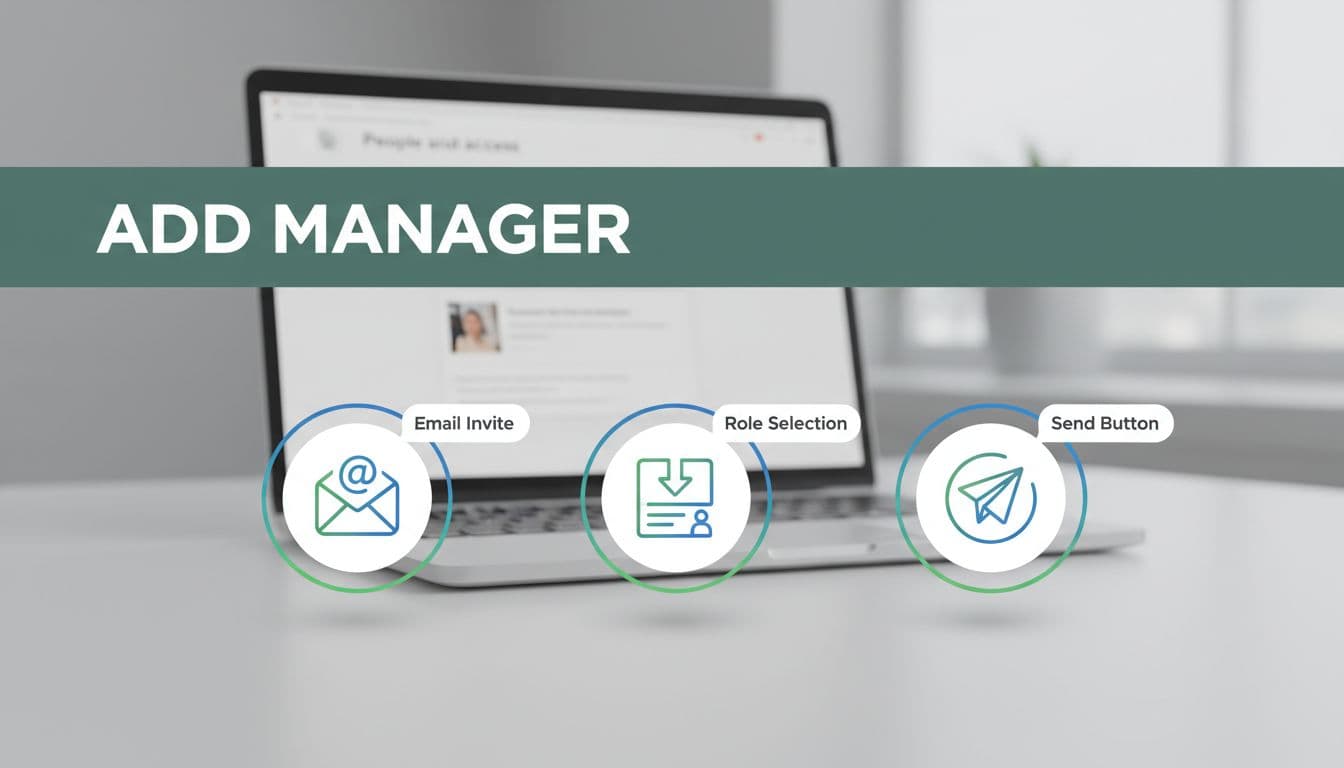
Only an owner can add users, and the process is simple (provided your profile has completed the verification process, including video verification if you have yet to claim this business):
- Open your business profile while signed into the correct Google Account.
- Go to Business Profile settings and select People and access.
- Click Add, enter the person’s Google email, and choose a role.
- Send the invite, then wait for them to accept it.
Access does not begin until the invite is accepted. Most businesses can set this up in a few minutes.
Where to find the People and access settings
Start by finding your profile in Google Search or the Business Profile interface. Then open the menu, go to Business Profile settings, and select People and access.
If you manage more than one location, confirm that you’re in the right profile before sending the invite. During the setup, verify the phone number is correct.
What to do if the invite is not accepted or the wrong person has access
Sometimes an invite gets missed or expires. If that happens, resend it.
You can also change roles later. If an employee leaves or an agency contract ends, remove that access right away.
Best practices before you let an employee or agency manage it
Avoid shared logins. Give the lowest level of access needed, review users often, and keep the primary ownership with the business. Before delegating, review your primary category, business category, and service area for accuracy. Update attributes and the business description to boost engagement, and keep the Map listing optimized for better local search results.
Management needs differ for a service business versus a storefront. For example, a storefront may require frequent business hours and phone number updates, while a service business often focuses on service area and reviews.
This matters even more when you hire an agency or contractor. You may hire help to manage the profile, but you should never give away the house keys.
A simple rule, your business should stay the Primary Owner
Think of Primary Owner as the deed to the property. Other people can help maintain it, but the business should keep long-term control as the primary owner.
Yes, someone else can manage your Google Business Profile, but the smart move is assigning the right role and protecting ownership. Delegating tasks like updating business hours, checking the phone number, and having someone to manage reviews improves performance on Google Search and Google Maps. If you want help with reviews, updates, and local visibility without losing control, Schedule Call.
Frequently Asked Questions
Can I let someone else manage my Google Business Profile without giving them my password?
Yes, use the People and access settings in your Business Profile to invite them via their Google email and assign a Manager role. They get access only after accepting the invite, and you retain full control over ownership and users. This is a secure, standard way to delegate day-to-day tasks.
What’s the difference between Owner and Manager roles?
Managers can edit details, hours, photos, posts, reviews, and messages but can’t manage users or take ownership. Owners have broader control, including adding/removing users, so reserve them for trusted internals. Manager is safest for outsiders like agencies.
How do I add a Manager to my profile?
Sign into your Google Account, go to Business Profile settings > People and access, click Add, enter their email, select Manager, and send the invite. Ensure your profile is verified first. Access activates upon acceptance, and you can resend if needed.
What should I do if an employee or agency no longer needs access?
As an owner, return to People and access, find them in the list, and remove or change their role instantly. Review your user list regularly to stay secure. This prevents issues if relationships end.
Is Primary Owner the same as regular Owner?
Primary Owner has the highest control, like transferring ownership, while other Owners manage users. Keep your business as Primary Owner for long-term control, like holding the deed to your property.