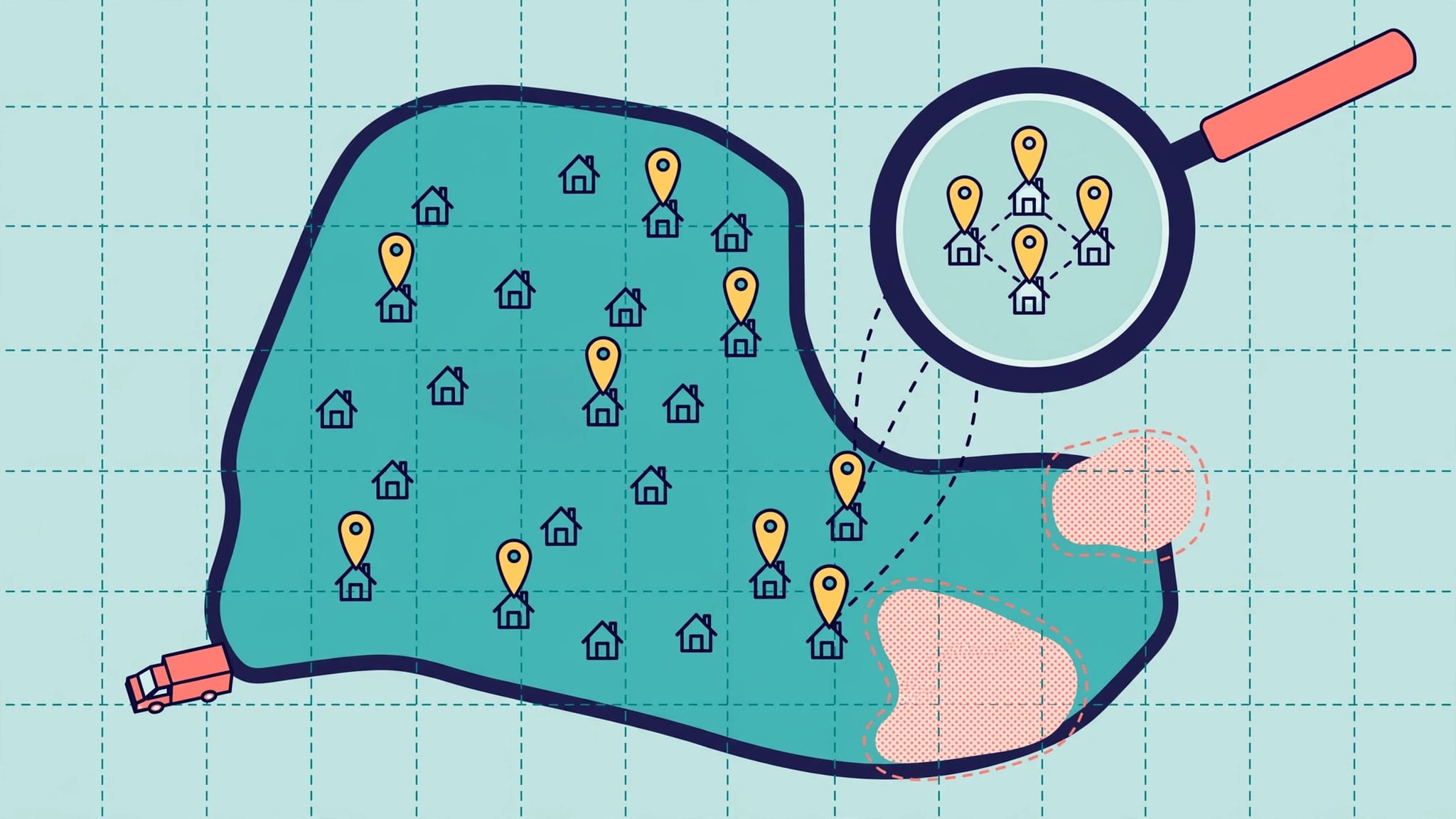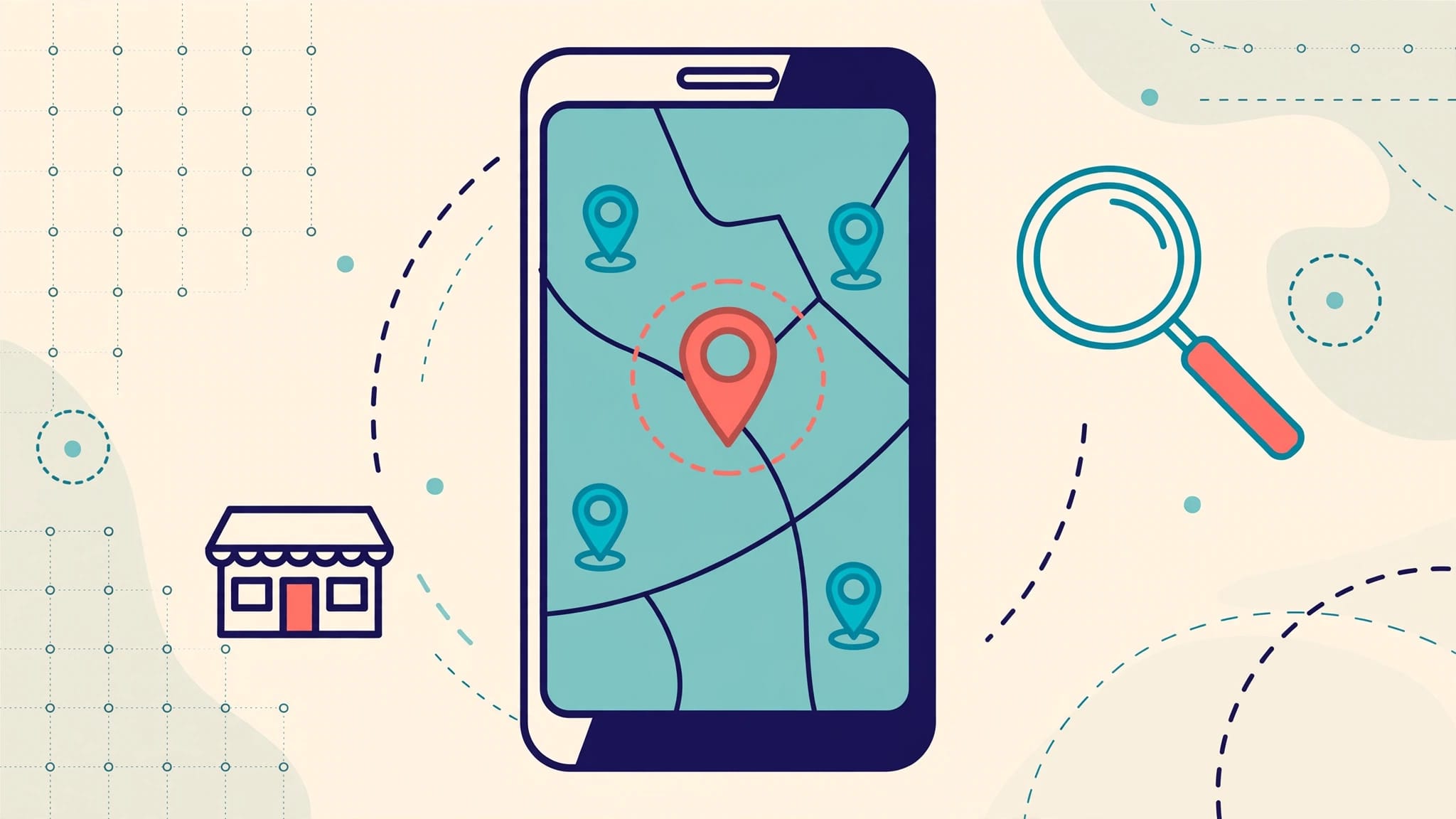
A customer searching for a nearby business that’s open now is ready to make a decision. If your hours are wrong, you can lose that customer before they call or visit.
Optimizing for open now searches starts with accurate availability, but it doesn’t end there. Your listing must show what you offer, where you serve customers, and how to reach you. Here’s how to check each part of that experience.
What Open Now Searches Mean for Your Business
An immediate-need search often signals clear search intent. Someone looking for a restaurant may want a table tonight. A homeowner searching for an emergency plumber may need help within minutes.
Google Search and Google Maps can show your hours alongside your phone number, reviews, and directions. In local search, customers may decide without opening your website, so your Google Business Profile on Search and Maps needs to answer practical questions quickly.
The availability filter helps people narrow their options, but it doesn’t guarantee placement. Google Trends shows relative interest over time or by region, not live business availability. A top rated result may be too far away or unable to serve the customer. Hours alone don’t determine placement; relevance, category, services, distance, and local prominence still matter.
Accuracy comes first: if your profile says you’re available, customers should be able to reach you or receive the service your listing describes. Once that’s true, you can improve the rest of the path from search result to call, booking, or visit.
Set Hours That Match Real Availability
Your Google Business Profile hours are the starting point for immediate-intent local searches. Treat them as an operating detail, not a field you fill out once and forget.
Check regular hours against your actual schedule
Open your Business Profile and select Edit profile, then Hours. Google’s instructions for editing business hours explain how to update your schedule. Check every day, including early closures and hours that extend past midnight.
Compare your profile with your storefront sign, website, booking system, and staff schedule. If your office closes at 5 p.m. but your profile says 6 p.m., customers may expect an extra hour of availability.
For a service-area business, clarify what “open” means. If customers can call after hours but appointments start the next morning, explain that on your website and in your response process. Don’t publish longer hours just to qualify for more searches.
Plan for holidays and temporary changes
Regular hours don’t cover every exception. Set special hours when a holiday, event, or short-term change affects your schedule. Google distinguishes special hours from regular business hours, and its guidance recommends marking a business temporarily closed for shutdowns of seven consecutive days or longer.
Update your hours as soon as the schedule is confirmed. A restaurant closing for a private event or a clinic changing hours for a holiday shouldn’t wait for its next monthly profile review.
Assign one person to manage these changes, especially when multiple employees handle the listing. A calendar reminder before major holidays can help prevent customers from arriving at a locked door. Our Google Business Profile update checklist can help keep these reviews consistent.
Make Your Listing Relevant to the Search
Correct hours help customers assess availability. They don’t tell Google or customers whether you offer the service they need. This is where local SEO and clear business details work together.
Choose categories and services that fit
Your primary category should describe your main business. Secondary categories should reflect services you actually provide, not every search term you want to rank for. A plumber should make plumbing clear in the profile rather than relying on a broad category such as contractor.
Next, review your service entries. Use names customers recognize and short descriptions that explain the work. “Drain cleaning” tells a homeowner more than a vague promise of general repairs. If you offer emergency service, describe when it’s available and how customers can request it.
Google Trends can help you compare service wording or seasonal interest, but it doesn’t prove demand for your business or replace accurate categories. These details improve clarity without promising a particular ranking. For a closer look at service entries, see how to list services on your Google Business Profile.
Keep location and contact details consistent
Check your business name, address, phone number, website link, and accurate hours across your Google Business Profile, website, and major directory listings. Fix outdated phone numbers, old locations, and incorrect hours first. They can create direct barriers for customers ready to act.
Location settings must also match how you operate. A staffed storefront can give customers directions. A mobile business whose customers can’t visit its base should use an appropriate service-area setup instead of presenting that address as a walk-in location.
Photos, reviews, and accurate attributes can help customers choose between relevant results. Monitor reviews for recurring confusion about hours or service availability, then update your details as needed. These elements support a complete profile, but none compensates for information that sends someone to the wrong place.
Match Your Website to Your Published Hours
Your website gives customers room to confirm details they can’t get from a map result. It should agree with your Business Profile, especially when your availability is more complicated than a single opening and closing time.
Put the right details near the action
Show current hours, your service area, and a working phone number on pages customers are likely to visit. On mobile, make calling or booking easy without requiring someone to search through the site.
If you serve multiple locations, create useful local pages for the areas you actually cover. Include location-specific services, accurate hours, and a working contact or booking option. Avoid thin duplicate pages for places you don’t serve.
You can also use accurate LocalBusiness structured data to describe your business details and hours. Make sure the markup matches what customers can see on the page. Structured data doesn’t guarantee a ranking or a particular search result display.
If evening calls are accepted but on-site work begins the next day, explain that distinction near the contact option. Do the same for appointment-only visits, pickup hours, or emergency coverage. Customers can then choose the right action without guessing what “open” promises.
When your schedule changes, update the website and other listings along with Google. A holiday notice on social media can inform followers, but it won’t correct the hours a new customer sees in Maps.
Make sure someone can respond
A visible phone number only helps if calls reach someone who can assist. Test the call path during your published hours, including weekends and shift changes. Check that booking links show available appointments and that forms reach the right team.
AI tools can help handle routine requests. Chatbots can collect the service needed and a callback number. Voice receptionists can answer common questions or route calls. Give these tools the same current hours your staff uses, and make clear when a person will follow up. An automated reply should never promise immediate service your team cannot provide.
Test Local Results Like a Customer
A profile can look correct in your dashboard while the customer experience still has gaps. Test a few search queries during your open hours, shortly before closing, and after you close.
Find and filter local results
In Google Maps, search for places using queries such as “open restaurants near me” or “plumber near me.” On the mobile app, you may see food and drink shortcuts near the top. If Restaurants isn’t in the quick selection list, type the category directly into the search bar or browse the available categories.
Look for an availability or hours filter in the filter options. On Android, Google’s documented route includes More Filters above results, followed by your selection and Apply. Labels and placement can differ by device and app version.
Repeat your searches in Google Maps near your location and, if you serve a wider area, test a few relevant neighborhoods. Results vary with the searcher’s location, so one search at your office isn’t a complete view of local visibility. Google Trends can help you explore relative or seasonal interest, but it doesn’t reproduce live map results or confirm a business is currently operating.
Investigate results that don’t match reality
If a listing appears after you’ve applied an availability filter, check the individual profile before assuming the filter is wrong. The displayed hours may be outdated, special hours may be missing, or the business may have changed its schedule. A place’s general closure status is also different from whether it is operating at this moment.
For your own listing, compare the public result with your profile settings and actual schedule. A “top rated” label or prominent placement in search results doesn’t prove a business is currently operating or guarantee its position for every searcher. Note the query, location, device, and time of the mismatch. Correct confirmed errors, then check the public listing again. Don’t assume a particular cache delay or filter fault without evidence.
The useful test is whether a customer can get the promised service at the displayed time, not whether the dashboard says the profile is complete.
Measure the Calls and Visits That Follow
Visibility matters, but outcomes matter more. Review available Business Profile performance reporting, including search data, alongside calls, direction requests, website visits, and bookings. Compare those indicators with staffing and sales records where possible.
A rise in direction requests is useful for a walk-in business. For a service-area company, qualified calls and booked jobs may tell you more. If customers frequently call after closing, review whether your hours or contact message creates the wrong expectation.
Give your team a simple process for reporting complaints about hours, unanswered calls, and failed booking links. Check the profile weekly and update important changes immediately. Business Profile reporting can show business-level activity, while Google Trends shows relative interest. Neither is a ranking verdict, and a “top rated” label or single position check can’t replace tracking useful customer outcomes.
If your team needs help auditing listings, fixing inconsistent details, or improving local lead handling, contact EarningCoach Marketing for help. The goal is a profile that supports the way your business operates and makes it easier for ready customers to reach you.
Key Takeaways
- Publish hours that match when customers can contact you or receive the advertised service.
- Keep holiday changes, website details, booking options, and staff responses aligned with your Google Business Profile.
- Test open now searches from customer locations, then track calls, visits, and bookings rather than relying on a single ranking check.
Frequently Asked Questions
Can I make the hours filter my default filter?
Google’s published Maps guidance doesn’t document a permanent setting in filter settings, and interface options may vary. For now, check the available hours filter when you start a new search. If you need a restaurant and don’t see it among the top category shortcuts, search for it directly before applying the filter.
Why might an Open now result be closed when I arrive?
A closed place may appear open if its listed hours no longer match the real schedule or an exception is missing. Search results also don’t verify whether staff can serve every request at that moment. Check the displayed hours and call ahead when the trip is time-sensitive.
Will adding more open hours improve my local rankings?
Longer hours aren’t a substitute for relevance, proximity, or accurate business information. Google Trends reports relative search interest in searches for restaurants, not a specific business’s live availability or a direct ranking factor. Publish the hours you can support. Then improve your categories, services, reviews, and contact experience so customers can choose you with confidence.
Make Availability a Reason to Choose You
A customer searching for help right now needs a reliable answer. Accurate hours get you into that decision, while clear services and responsive contact options help turn interest into business.
If your profile and customer experience don’t yet line up, schedule a No-cost discovery call. We’ll identify the updates that can help nearby customers find and reach you.