Storefront vs. Service-Area Businesses in Google Maps
Storefront businesses show customers where to visit, while a service area business (SAB) shows where its team travels or delivers. Your Google Business Profile should reflect that difference through address visibility, service-area settings, and clear customer instructions.
Choosing the wrong setup can send customers to a private home or leave them unsure whether you accept visitors. Start with how customers receive your services, then match your Maps listing to that experience.
What customers see in Google Maps
Google defines a service-area business as one that visits or delivers to customers without serving them at its business address. Electricians, cleaning companies, and mobile detailers commonly fit this model.
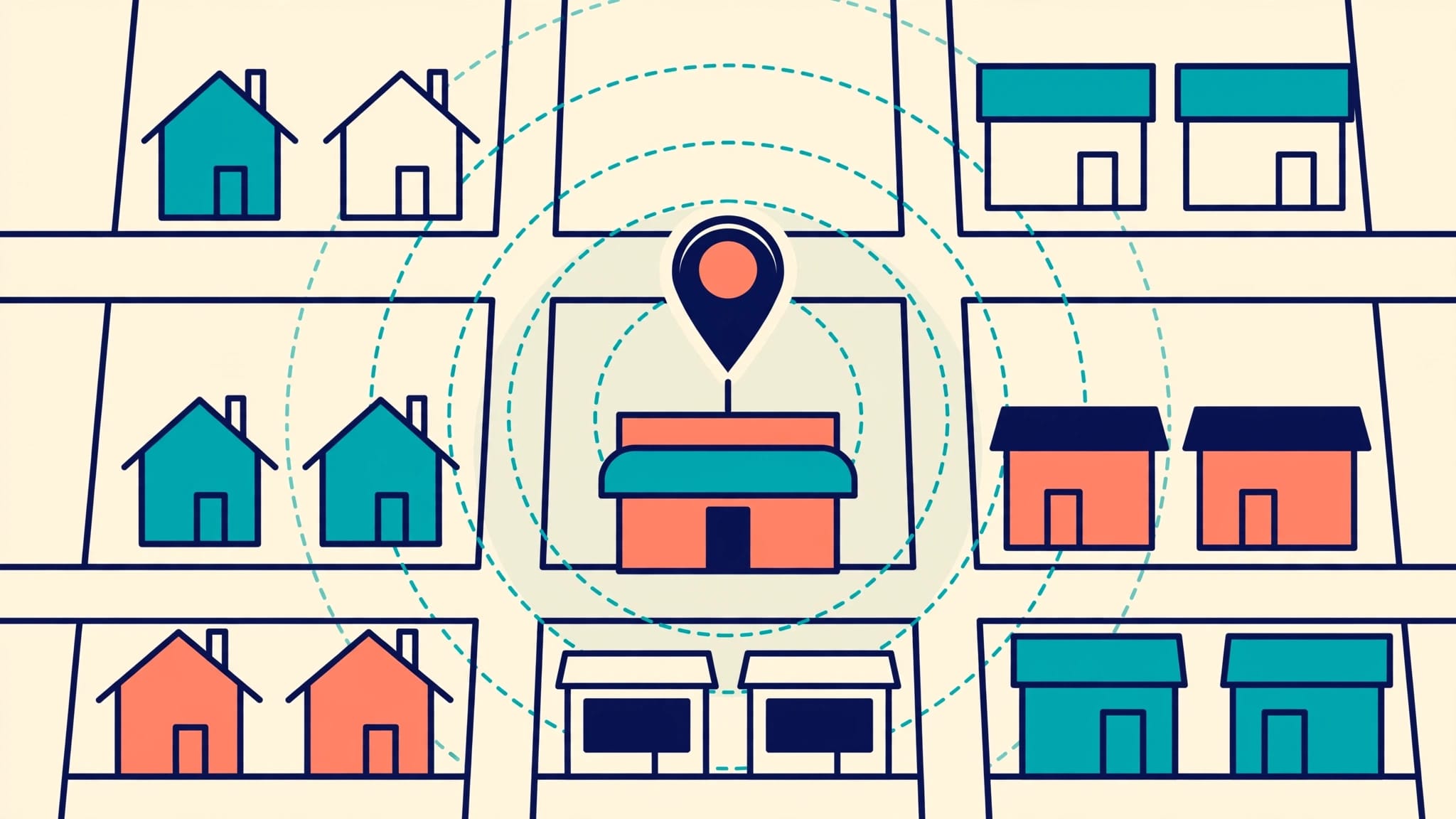
A storefront receives customers at its location. Meanwhile, a hybrid business does both, such as a florist with a customer-facing shop and home delivery.
These differences shape what customers should find on the listing.
| Profile detail | Storefront | Service-area business | Hybrid business |
|---|---|---|---|
| Public address | Displayed | Hidden | Displayed |
| Service areas | Usually unnecessary | Listed | Listed when relevant |
| Customer destination | Business premises | Customer’s location | Either location |
| Main instructions | Visiting hours and directions | Coverage and booking | Visit and delivery details |
A hidden address doesn’t prevent an eligible business from appearing in Maps. However, the listing should guide customers toward calls and appointments rather than a visit to its operating base.
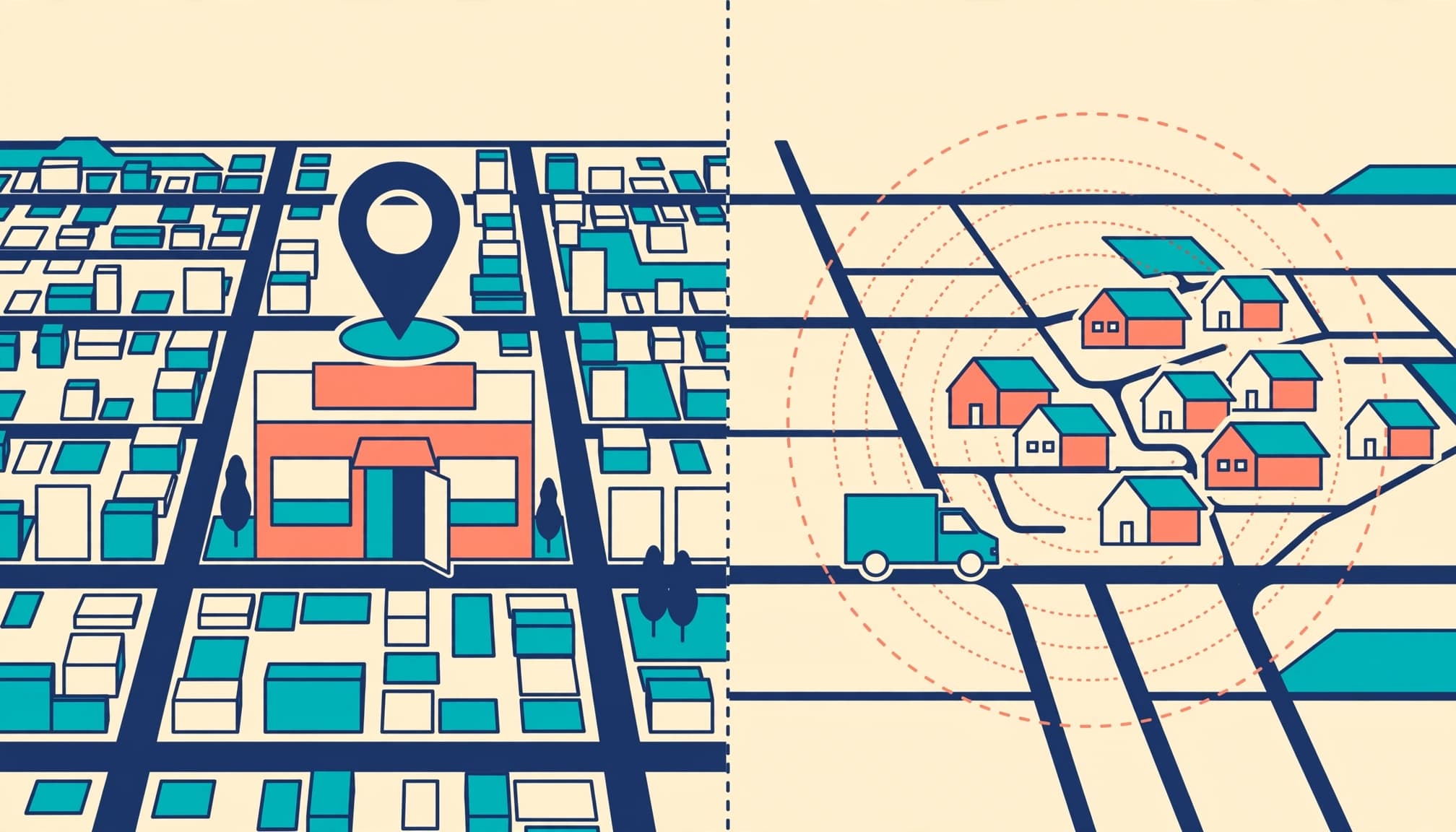
The practical distinction is simple: customers need to know whether they should come to you or expect you to come to them.
Choose the setup your business can support
Storefronts need a genuine customer-facing location
Show your physical address only if customers can visit a real, staffed location during your stated customer-facing hours. Include recognizable entrance photos, accurate directions, and useful parking information.
A mailing address, virtual office, or empty rental doesn’t become a storefront because you want visibility in that city. Likewise, a map marker should identify your actual premises, not a more convenient nearby intersection.
For businesses with several eligible locations, our multi-location local SEO guidance explains how to keep each branch’s information distinct and consistent.
Mobile and hybrid businesses need clear expectations
If customers don’t visit your operating base, hide address details. Then explain your coverage, booking requirements, and any travel charges on your website.
A hybrid business can display both its eligible address and service areas. However, it should distinguish shop hours from delivery or on-site service availability.
Don’t add service areas merely because the field exists. Sterling Sky advises hotels against using them because a coverage-style map can confuse guests who need one precise destination.
Do service areas change local rankings?
Google describes local ranking through relevance, distance, and prominence. Hiding an address doesn’t remove location from that framework.
What the published findings say
Sterling Sky’s service-area analysis reports that service-area selections don’t affect rankings in its testing. It ties visibility primarily to the verified physical base. Its test listing didn’t gain Toronto rankings simply by naming Toronto as its service area.
Sterling Sky describes the field’s visible effects as a desktop Maps overlay and changes to the address-position display on mobile.
In contrast, BrightLocal’s service-area guidance says these profiles place less emphasis on proximity, giving relevance and prominence more weight.
These interpretations differ. Neither supports treating a selected town as a guaranteed ranking territory.
Measure visibility across actual search locations
Use Local Falcon or BrightLocal’s Local Search Grid to track one relevant search across consistent geographic points. Record a baseline before editing service areas.
Then change only the coverage field and repeat the same scan settings over time. Keep a record of other changes, including reviews, categories, and website updates.
This comparison is more useful than searching once beside your office. Still, one before-and-after result can’t isolate every algorithm or competitor change.
Our guidance on Google Maps visibility explains other reasons a published profile may struggle with discovery searches.
Set up or switch your Google Business Profile
Create an accurate service-area profile
If your business already has a profile, edit it into an SAB instead of creating another listing, which can create duplicates.
- Sign in to the Google account that manages the business and claim or open its profile.
- Enter the real business details and provide your physical address privately if Google requests it for verification.
- Turn off “Show business address to customers” if customers don’t visit your location.
- Add the places you genuinely serve in the service area settings, then complete your category, services, hours, phone number, and website.
Google’s instructions explain how to manage your business address. Hiding the address protects the distinction between your operating base and a customer destination.
Change an existing storefront without starting over
If customers no longer visit, edit the existing profile rather than replacing it. In the location settings, hide the public address and add your service areas.
To change coverage, open Edit profile, select Location, and edit Service area. Remove places you no longer serve before saving.
If the business physically relocates, update its underlying address too. Major changes can trigger re-verification, so save screenshots of the original settings.
Sterling Sky recommends a genuine move closer to the target city when distance is a major obstacle. Editing coverage alone isn’t a physical relocation.
For help choosing the right setup or correcting conflicting information, call us at 732-523-2600.
Select realistic cities and ZIP codes
Google allows up to 20 service areas. Its service-area rules describe named areas, such as cities and postal codes, rather than a custom radius.
Google also says the overall boundary should generally remain within about a two-hour drive of your base. You can’t select an entire state as your service area.
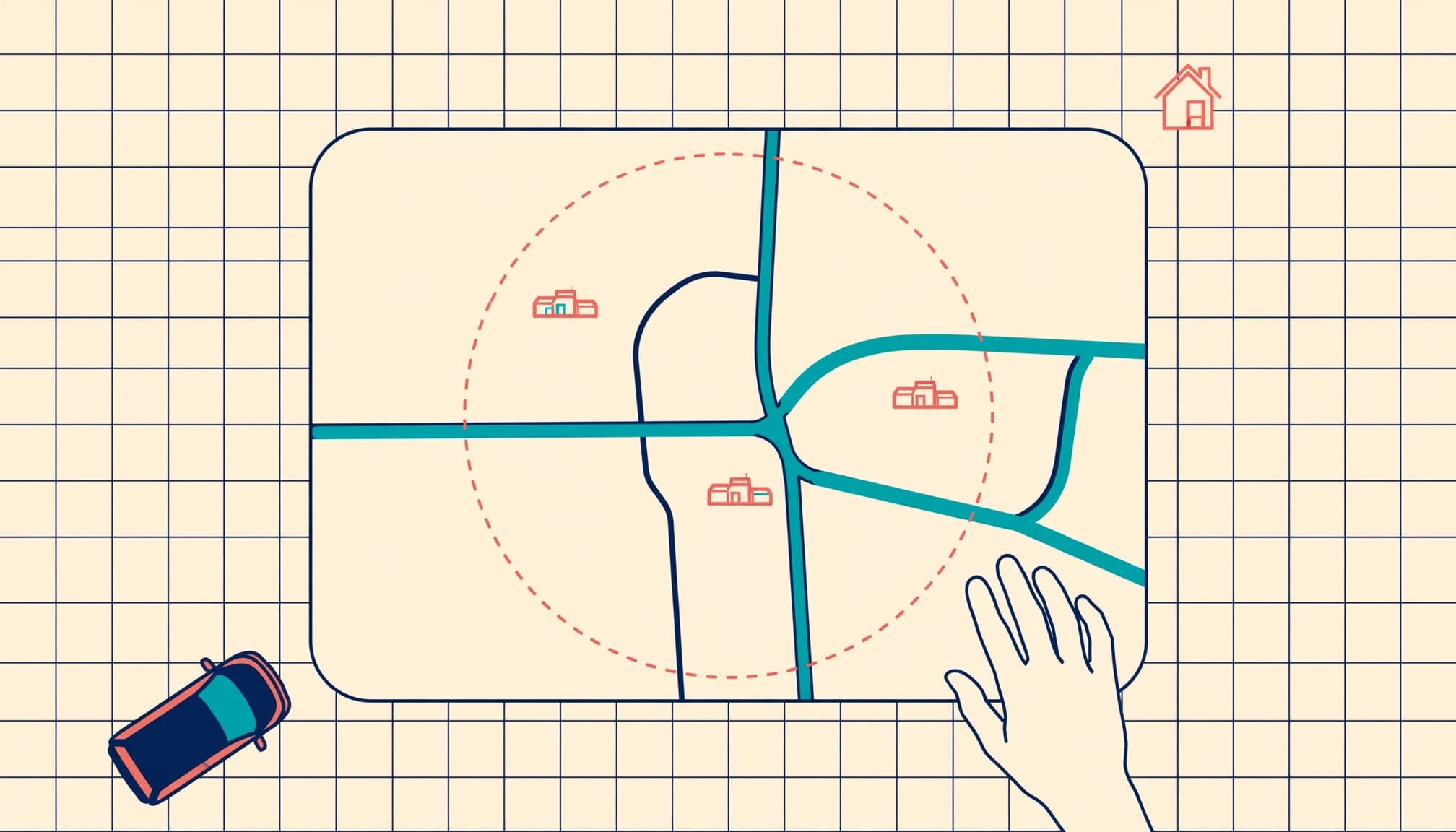
Choose a service area based on completed jobs and your team’s dispatch capacity. Review the previous 12 months to see where customers already book work.
For emergency trades, travel time and dispatch capacity matter more than filling every available slot. Scheduled cleaning or maintenance businesses can also consider established routes. A zip code can describe coverage more precisely than a whole city. Before selecting one, check completed jobs in each zip code.
A service-area boundary describes where you accept work. It doesn’t create another staffed business location.
Therefore, one operating base shouldn’t produce separate profiles for every town on your coverage list.
Build local SEO around accurate information
Strengthen the profile and business details
Choose the primary category that best describes your main work. For a plumbing business, “Plumber” is more precise than a broad contractor category.
BrightLocal’s ranking-factor summary identifies primary category as the leading Local Pack factor in the 2026 Local Search Ranking Factors survey. That finding reflects expert assessment, not a published Google weighting formula.
NAP consistency still matters, including for hidden-address businesses. Keep the business name and phone number identical across your website footer, social media profiles, citation sites, directories, and review platforms. Where an address appears publicly, it should be accurate. Consistency doesn’t require publishing a private home address.
Support coverage with useful pages and follow-up
Give major services their own pages. Create service area pages or landing pages only for markets where you can provide genuine local information or confirm service availability, such as project photos or answers to local customer questions. Use long-tail keywords and hyperlocal keywords to describe actual services and coverage in useful, locally specific content.
Our service-area business SEO guidance explains why a few substantial local pages are stronger than cloned pages with swapped city names.
Use this local SEO maintenance checklist to keep profile details and customer information accurate:
- Keep services, regular hours, and holiday hours accurate.
- Request honest reviews after completed work, then use feedback from reviews to identify recurring customer questions.
- Track reviews over time and respond professionally.
- Publish real job or premises photos appropriate to your business type.
- Give AI voice receptionists and chatbots the same approved coverage, booking, and visiting instructions.
These tasks also improve the experience after discovery. A customer who calls about an unsupported location shouldn’t receive a different answer from your website or automated assistant.
Key takeaways for your Maps listing
The storefront versus service-area business decision starts with customer access. Display an eligible address when customers visit; hide it when they don’t.
For both models, accurate categories and useful business information support discovery. However, service-area selections describe coverage rather than guaranteeing equal visibility throughout it.
Measure rankings by search location, then connect those results with qualified calls and bookings. This keeps your local marketing focused on actual business outcomes.
Frequently asked questions
Are Local Services Ads part of my Maps listing?
Local Services Ads are a separate paid product with their own eligibility and screening requirements. Setting service areas in your Business Profile doesn’t automatically enroll your business.
They can complement unpaid visibility, but buying ads doesn’t purchase better organic Maps rankings. Keep paid lead reporting separate from your profile’s unpaid performance.
Why can my website rank where my Maps listing doesn’t?
Organic website results and local Maps results use different ranking systems. A useful service page can appear for a city’s search even when distance limits your profile’s visibility there.
Therefore, evaluate website performance separately from neighborhood-level Maps rankings. One company’s overall search visibility doesn’t describe every customer’s local results.
Make your listing match the customer experience
Your profile should give customers an accurate next step: visit your premises, request delivery, or book an on-site service. Clear expectations matter more than selecting the largest possible territory.
For a free discovery call about your profile setup and local coverage, Schedule Call with us. We’ll discuss how your business operates and where your local marketing needs attention.