
Fixes for More Local Leads From Your Website
Improving website accessibility removes barriers that prevent local customers from calling, booking, or requesting quotes, directly boosting your leads. Focus on fixing key conversion points like phone links, contact forms, and mobile menus with clear contrast, keyboard navigation, and accessible labels. These practical steps enhance user experience, support SEO, and help every visitor complete their desired action.
Your next customer may be one hard-to-read button away from leaving. Local traffic often arrives ready to act, whether someone found you through a Google Business Profile, a social media post, or a service search.
Website accessibility fixes remove the barriers that stop people from reading, moving through, or submitting your site. They are an inclusive design choice for local customers. Source-level accessibility improvements make it easier to call, request a quote, book an appointment, or get directions.
Start with the pages where local buyers decide whether to contact you.
Key Takeaways
- Website accessibility fixes reduce barriers that can prevent local customers from calling, booking, requesting a quote, or getting directions.
- Start with high-impact conversion paths, including mobile menus, contact forms, booking tools, phone links, and downloadable PDFs.
- Prioritize clear contrast, visible focus states, useful alternative text, logical headings, keyboard navigation, accessible form labels, and helpful error messages.
- Use WCAG 2.2 Level AA as a practical benchmark, but remember that accessibility work does not guarantee ADA compliance or eliminate legal risk.
- Combine automated scans with keyboard, mobile, and screen reader testing, then track calls, forms, bookings, and direction requests after major fixes.
Why accessibility drives local conversions
Accessibility can sound like a technical or legal task. For a local business, it is also a conversion issue. If a visitor cannot see your call button, use your booking calendar, or complete a contact form, that lead is gone.
An overview of WebAIM Million findings reports detectable WCAG 2 failures on 94.8% of homepages, with an average of 51 errors per page. Many of the reported errors are common accessibility issues that interfere with basic actions.
A homeowner searching for emergency HVAC repair may need to tap a phone number fast. A patient may need to book an appointment without guessing what each form field means. A shopper may need to understand a product image before adding it to a cart.
When those actions are clear and usable, customers have fewer reasons to leave.
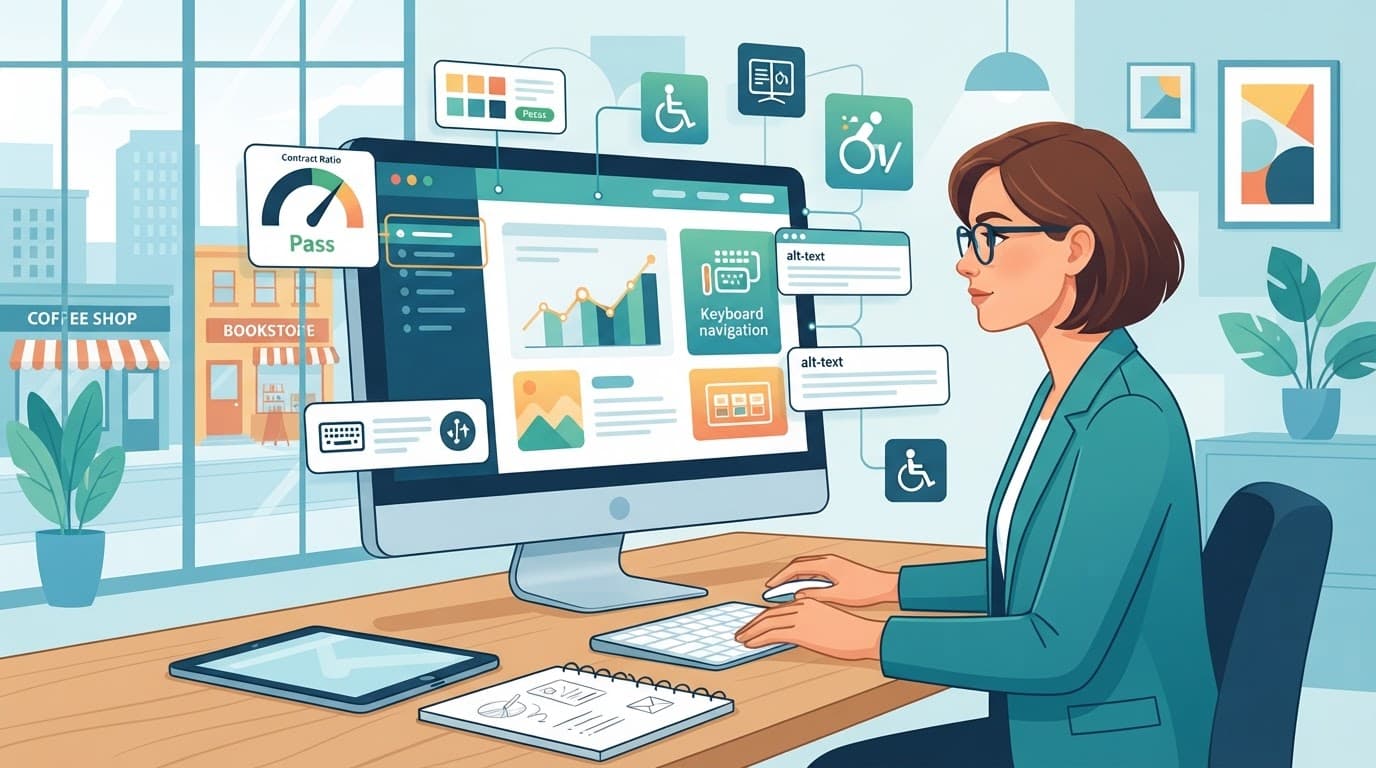
A visitor who cannot complete your primary action is not a poor-quality lead. They are a customer your website failed to support.
Accessibility also supports SEO, mobile usability, and user experience. Clear headings, readable text, useful structure, and functional buttons help search engines understand your content and help visitors act.
Website accessibility fixes that remove local conversion friction
Start with template-level problems. A repaired header, contact form, booking flow, or mobile menu can improve dozens of pages at once.
Fix contrast, tap targets, and focus visibility
Poor color contrast is easy to miss, especially outdoors or on a phone. It can make service details, prices, hours, and calls to action difficult to read.
For WCAG AA, normal-size text should have a color contrast ratio of at least 4.5:1 against its background. Large text needs at least 3:1. Your primary call button should stand out through contrast, clear wording, and enough space around it.
Do not use color as the only signal. If a required field is marked only in red, some visitors will miss the message. Add clear text such as “Required” and explain what needs attention.
Mobile buttons matter too. WCAG 2.2 includes a 24 by 24 CSS pixel target-size minimum in many cases. Give tap targets enough room, especially for “Call Now,” “Get Directions,” “Book Online,” and close buttons.
Check sticky headers, cookie banners, popups, and chat windows. They should not cover the button or form field a keyboard user has selected.
Make content work with screen readers and keyboards
Screen readers announce page content aloud. When an important image has no text alternatives, the visitor may hear only “image” or a meaningless file name.
Informative images need meaningful text alternatives. Write alternative text that explains the image’s purpose. A service photo that helps a customer choose your business might describe the work shown. Decorative shapes and background flourishes should be skipped by screen readers. A practical alt text guide can help your team create better first drafts, but someone who understands the image should review every description.
Embedded videos should include video captions when spoken content or dialogue conveys information.
Downloadable menus, service guides, and forms need PDF remediation so their text structure, reading order, and meaningful content remain usable.
Heading hierarchy matters as well. It depends on using heading tags consistently. Use one clear H1 for the page topic, then organize sections with H2 and H3 headings in order. Do not create headings by making regular text bigger and bolder.
Keyboard navigation is another priority. Test keyboard navigation by pressing the Tab key on your homepage, service page, contact page, and booking page. You should be able to reach every link, button, field, and menu item. The selected item needs a visible focus indicator, and visitors must be able to close popups or calendars without getting stuck.
These image, heading, and keyboard practices support visitors who use assistive technology.
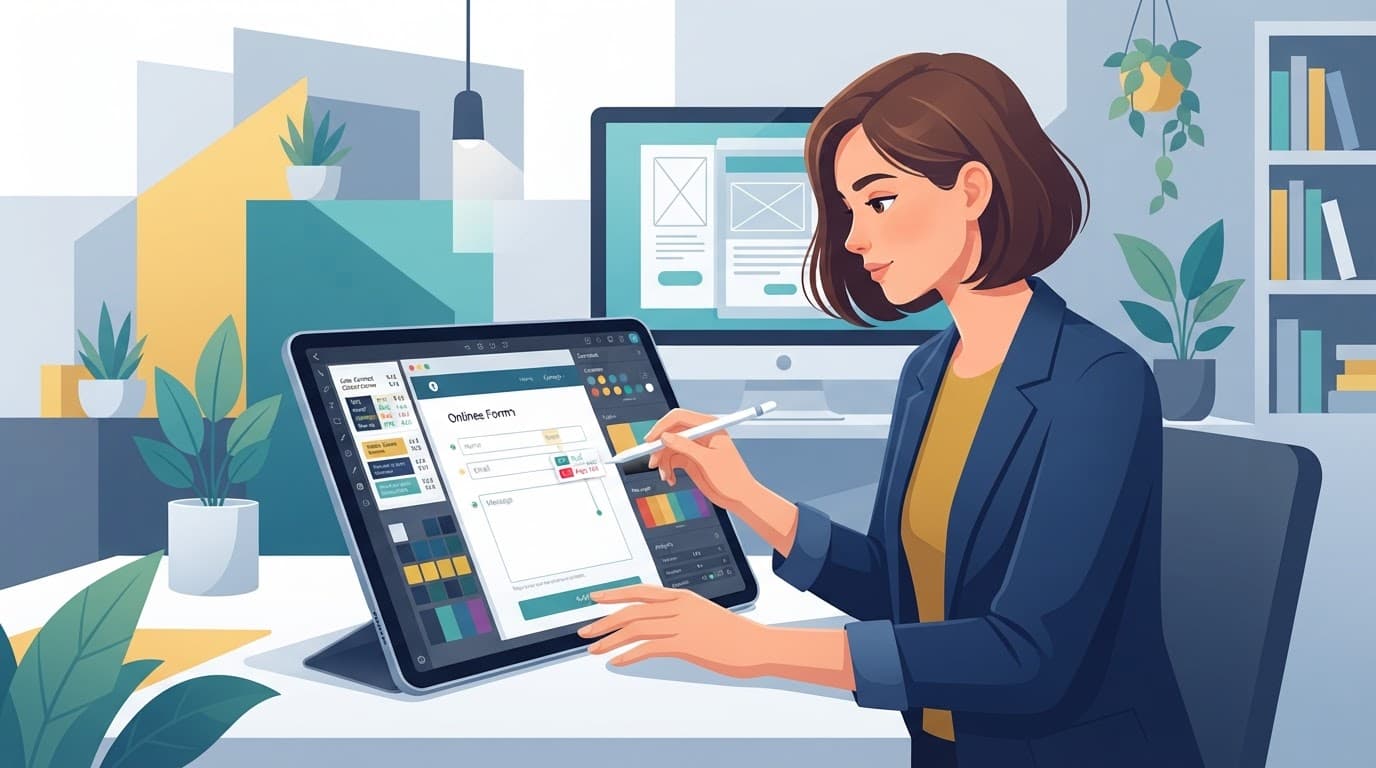
Build short, accessible online forms
A contact form should not feel like work. Ask for the basics first, usually name, email, and phone number. You can collect more details after the lead is engaged.
Each field needs a visible label connected to the input. Placeholder text inside a box is not enough because it disappears when someone starts typing. Radio buttons, checkboxes, and date fields also need clear instructions.
When a visitor makes an error, clear error identification should explain what went wrong and how to fix it. Show that message beside the field and near the top of the form. Move keyboard focus to the error summary when appropriate. “Please enter a valid phone number” is useful. “Error” is not.
A confirmation page or message should state what happens next. That simple detail supports quote requests and appointment bookings because customers know their form did not disappear into a void.
Use WCAG as a working standard, not a legal promise
WCAG 2.2 is the current set of web accessibility guidelines from the W3C. It includes the earlier WCAG 2.1 requirements and adds checks related to visible focus, drag alternatives, touch target size, consistent help, and accessible authentication.
For most business websites, WCAG 2.2 Level AA is a practical benchmark for WCAG compliance and one of the most useful accessibility standards. Digital accessibility is ongoing work, not a one-time badge. New pages, plugins, forms, videos, and redesigns can introduce new accessibility issues.
| Framework | What it generally covers | What local businesses should know |
|---|---|---|
| ADA Title III | Public-facing places of accommodation | Commercial websites may raise ADA compliance concerns, so reducing barriers is a sensible business step. |
| Section 508 | Federal agency information and communication technology | It usually applies to federal agencies and their digital systems, not a typical private local business. |
| ADA Title II | State and local government services | The Department of Justice has WCAG-based web requirements for public entities with phased compliance dates. |
Section 508 generally applies to federal agencies and their digital systems, not a typical private local business. Accessibility scope should also include downloadable menus, forms, and service guides, with PDF remediation when needed. Federal work and government contracts may have document requirements that call for PDF remediation.
Accessibility work can reduce barriers and legal risk, but it does not guarantee ADA compliance or immunity from claims. Businesses serving customers in the EU should separately review the European Accessibility Act; it is not a U.S. requirement. If you have received a demand letter, operate in a regulated field, or work with government contracts, speak with qualified legal and accessibility professionals.
Pair automated tools with real visitor testing
Automated tools are useful for finding repeat problems. Tools such as WAVE, axe DevTools, and Lighthouse can flag missing form labels, color contrast problems, broken heading patterns, and empty links.
An accessibility audit should begin with the homepage, priority service and location pages, contact flow, booking flow, checkout, and downloadable PDFs. Review PDFs for missing structure and reading-order problems, and include PDF remediation in the work list. Fix high-impact template problems first. Prioritize digital accessibility by lead impact, not scanner-warning volume. Repeat the accessibility audit after major template or plugin changes.
Automated testing can surface recurring accessibility issues, but it cannot judge every human-centered problem. It cannot always tell whether alternative text is meaningful, whether a keyboard order makes sense, or whether a form error message is understandable. Test critical paths with keyboard navigation, a phone, and screen readers such as NVDA or VoiceOver.
Don’t rely on an accessibility widget as the full solution. It may add options for users, but it doesn’t replace source-code changes required for code-level accessibility.
If you use AI chat bots, voice receptionists, or after-hours lead tools, review those paths too. A chat widget should not hide a focused button. A voice receptionist cannot recover a call that never happens because your mobile phone link is too small or difficult to find.
Track the results in GA4. Watch click-to-call events, completed quote forms, appointment bookings, direction clicks, and purchases. Track PDF remediation separately alongside page and form fixes, then compare a 28-day period before and after a major fix. Your Google Business Profile and website should show the same phone number, hours, and contact options.
If your team needs help sorting a long list of issues, a No-cost discovery call can help organize the work around lead impact.
A prioritized accessibility quick-win checklist
- Test your primary phone number, contact form, booking tool, and directions link on a mobile device with keyboard navigation.
- Update low-contrast text and buttons so calls to action are easy to see without zooming.
- Add visible focus styles, larger tap targets, and keyboard-friendly close buttons for menus, popups, and calendars.
- Correct heading order, write useful alternative text for service photos, product images, maps, and other meaningful visuals, and complete PDF remediation for downloadable menus, guides, forms, and other customer-facing documents.
- Simplify lead forms, add visible labels, and provide clear error messages that explain how to fix the problem.
- Schedule a recurring accessibility audit, scan priority pages each month, then test the full customer journey manually. Track calls, form submissions, bookings, and direction requests after each major update.
Frequently Asked Questions
What are the most important website accessibility fixes for a local business?
Start with the pages and tools that generate leads, such as phone links, contact forms, booking calendars, and directions pages. Improve contrast, tap targets, keyboard access, labels, focus visibility, and error messages so visitors can complete those actions.
Does an accessibility widget make a website accessible?
No. A widget may provide limited user controls, but it does not replace source-code changes, accessible content, or PDF remediation. Test and fix the underlying website instead of relying on a widget as the full solution.
Is WCAG 2.2 Level AA required for every local business website?
WCAG 2.2 Level AA is a practical accessibility benchmark for most business websites, but legal requirements depend on the business, its services, contracts, and location. Accessibility improvements can reduce barriers and risk, but they do not guarantee ADA compliance or immunity from claims.
Can automated accessibility tools find every problem?
Automated tools can identify recurring issues such as missing labels, contrast problems, empty links, and broken heading patterns. They cannot reliably judge whether alternative text is meaningful or whether a keyboard and screen reader user can complete the customer journey, so manual testing is also needed.
How should a business prioritize accessibility work?
Begin with high-impact template problems and the customer paths tied to calls, quote requests, bookings, purchases, and directions. Fix critical issues first, retest after major changes, and compare conversion events before and after the work.
Make every local visit easier to act on
The strongest website accessibility fixes clarify the customer journey. They help people read your message, find your phone number, understand your form, and take the next step without frustration.
A fast, mobile-friendly site still loses leads when visitors cannot use it. Clear, readable, keyboard-friendly, action-focused pages put inclusive design into practice and help every local customer move forward.