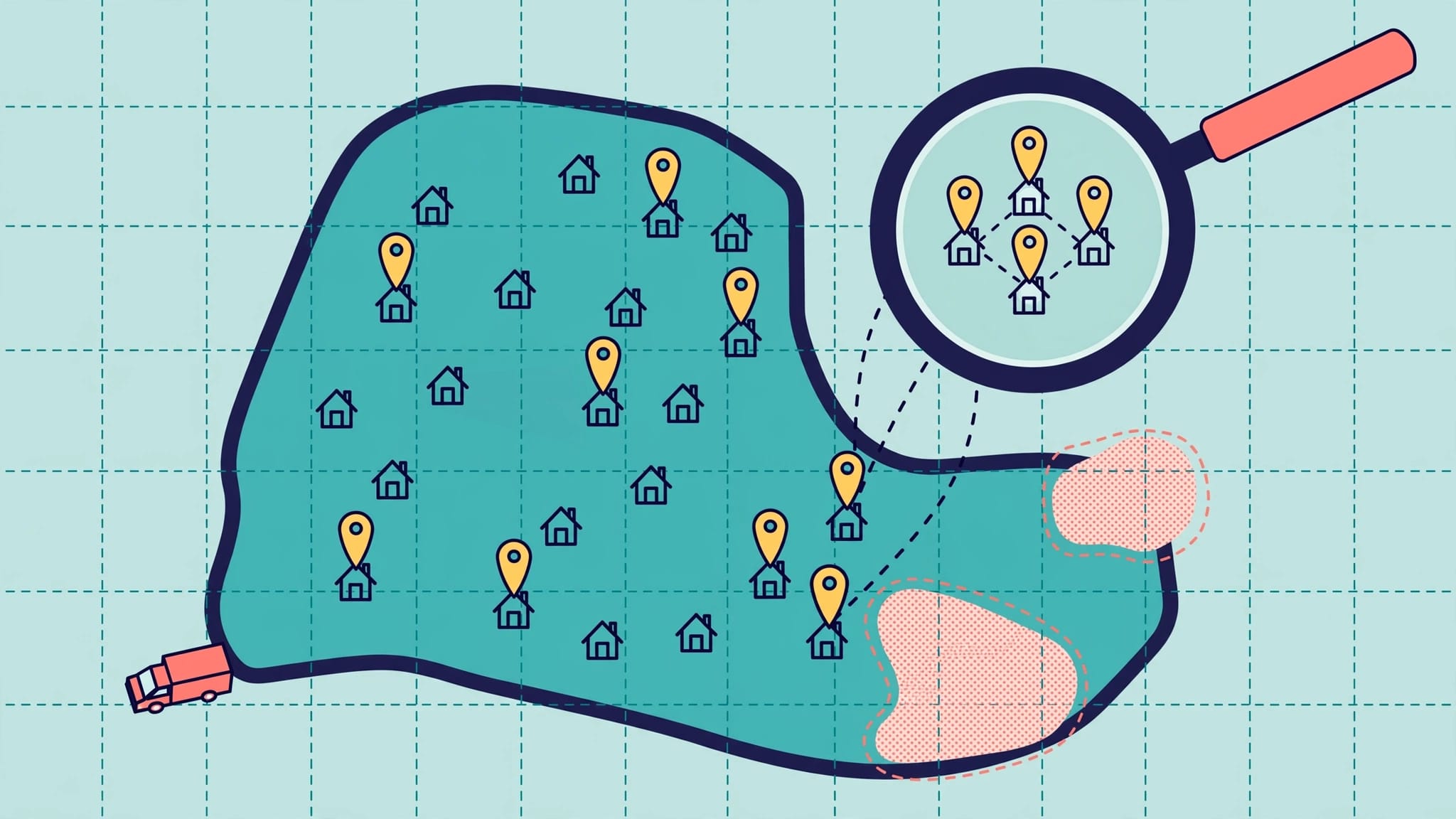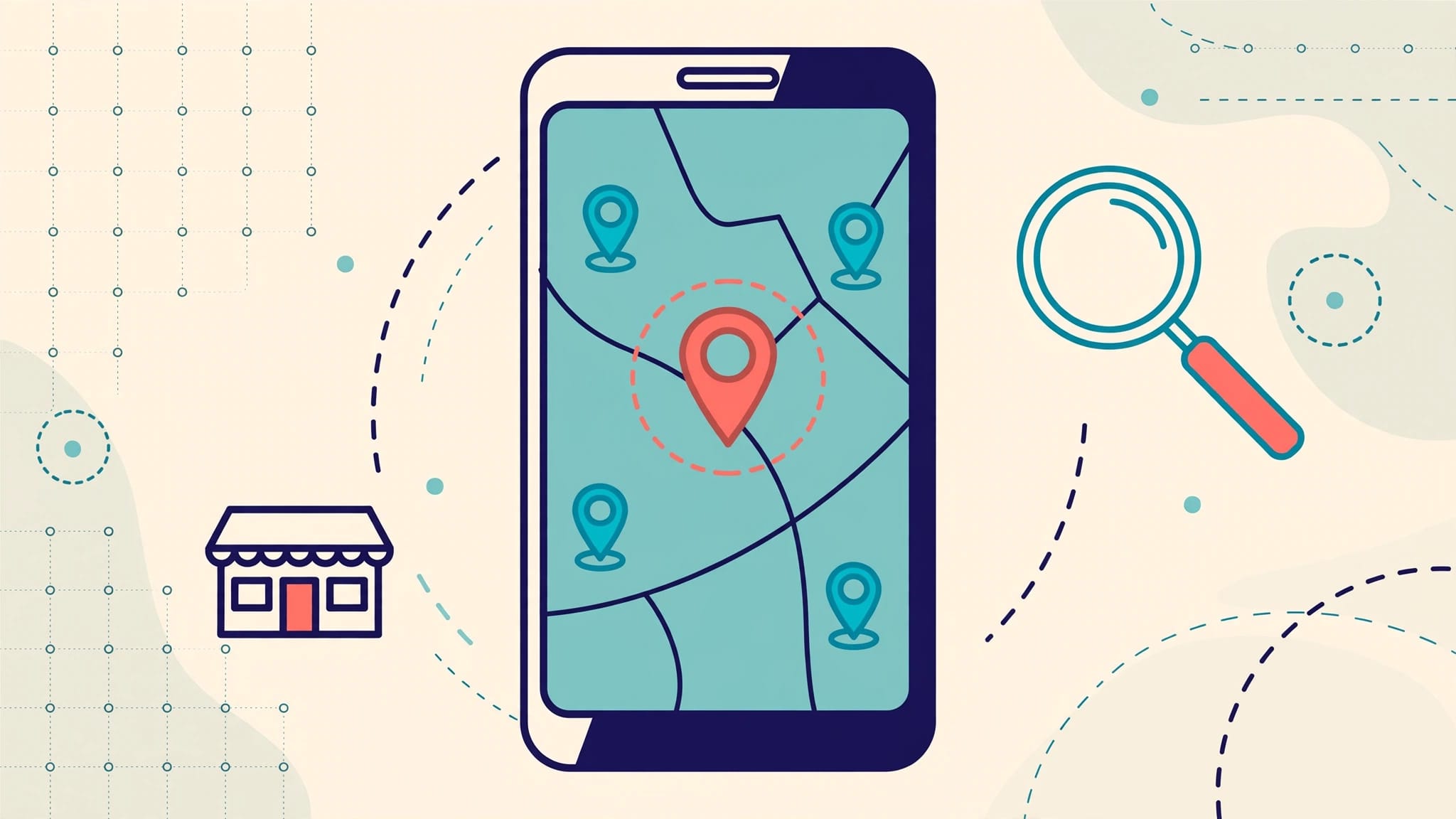
Yes, an incorrect Google Maps pin can reduce nearby search visibility when it misrepresents your business location. It can also send customers to the wrong building or entrance, although correcting it doesn’t guarantee higher rankings.
The important distinction is which pin is wrong: a marker on your Google Business Profile affects your public listing, while a personal dropped pin doesn’t.
Start by identifying the location error, then correct the right record without changing information that’s already accurate.
Key Takeaways
An accurate business marker supports reliable location information, but local SEO also depends on relevance, distance, and prominence. A pin correction addresses a location problem; it doesn’t overcome every ranking limitation.
Saving or sharing a dropped pin won’t update your public business listing. That requires an edit to the business location itself.
How an Incorrect Google Maps Pin Affects Visibility
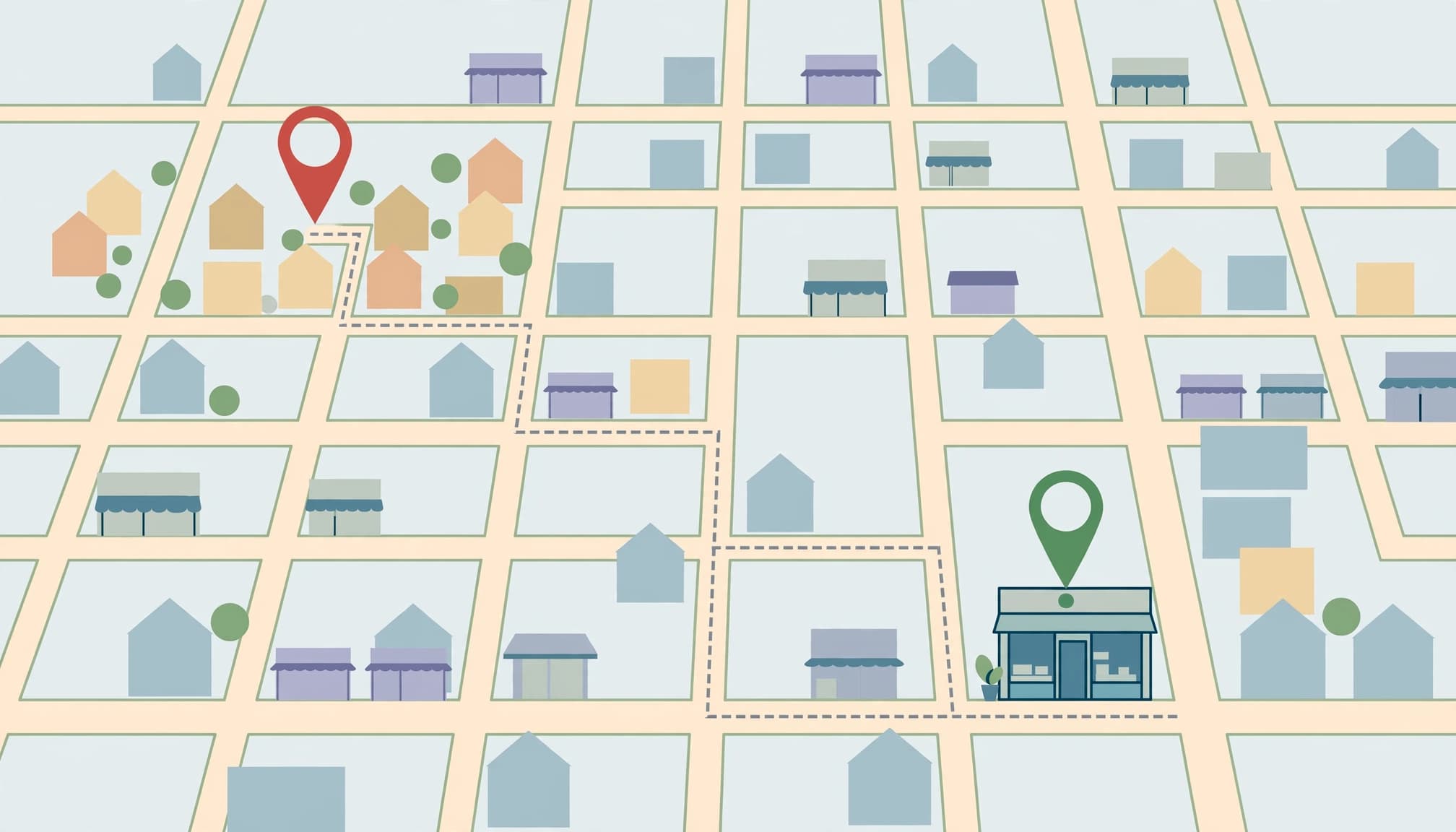
Distance influences nearby results
Google’s local ranking factors include relevance, distance, and prominence. Relevance is how well your business matches a search. Distance considers location, while prominence reflects how well-known your business is.
A marker in the wrong neighborhood can misrepresent where you operate. Google doesn’t publish a fixed ranking penalty for a misplaced marker or guarantee a ranking improvement after correction.
Our explanation of Google proximity ranking covers why visibility changes between neighborhoods, even for businesses that serve an entire city.
Incorrect directions can cost customer visits
A misplaced marker can cause problems after someone finds your listing. Customers may arrive at a neighboring property, delivery entrance, or inaccessible road and need route help.
These errors affect the customer experience even when your search position doesn’t change. An accurate marker helps customers complete their visit with fewer calls for directions.
Don’t assume every visibility decline comes from the pin. Profile restrictions, duplicate listings, incorrect categories, and stronger competitors can also affect results.
Check Your Business Listing Before Editing
Search for the public listing
Search your exact business name and city in Google Maps. Open the listing and compare its address, marker, phone number, and website with your business records.
Then search a service or category phrase customers would use. Appearing for your business name doesn’t mean you’ll appear equally well for broader nearby searches.
A Google Business Profile is the public business record. Your personal saved places are separate.
Compare the address with the actual location
Zoom in and use satellite imagery to compare the marker with your building. Test directions as a customer would, including the final road approach.
An address can be correct while its map marker is wrong. Conversely, moving the marker won’t repair an incorrect street address.
Before editing, record the current settings and capture screenshots. Also review your profile manager for messages such as “Needs verification,” “Pending,” or “Suspended.” Those issues require attention beyond repositioning a pin.
How to Correct Your Business Map Location
Adjust the marker through your profile
Google’s business address instructions describe the location-editing process.
- Sign in to the Google account that manages your business.
- Open your Business Profile and select Edit profile, then Location.
- Beside “Business location,” select the edit option.
- Place the marker at the correct pin location on your business premises. Correct the address only if it’s wrong.
- Save your changes, then review the public listing after the update is published.
Don’t move the marker toward a busy intersection or city center to pursue better rankings.
Google may review location changes or request verification. Avoid repeatedly changing the address while an edit is pending.
Use the right service-area setup
If customers don’t visit your location, hide the address and display your genuine service areas. A hybrid business may show its address when it has an eligible, staffed location that welcomes customers.
Adding distant towns doesn’t establish a business location there or guarantee rankings beside those searchers. P.O. boxes and virtual addresses aren’t substitutes for eligible premises.
Need help correcting a marker or resolving a profile warning? Call us at (732) 523-2600 for help reviewing the issue.
Drop, Save, and Share a Pin on Mobile
When you drop a pin, it identifies a point, including places without a street address. It doesn’t create or relocate a business listing.
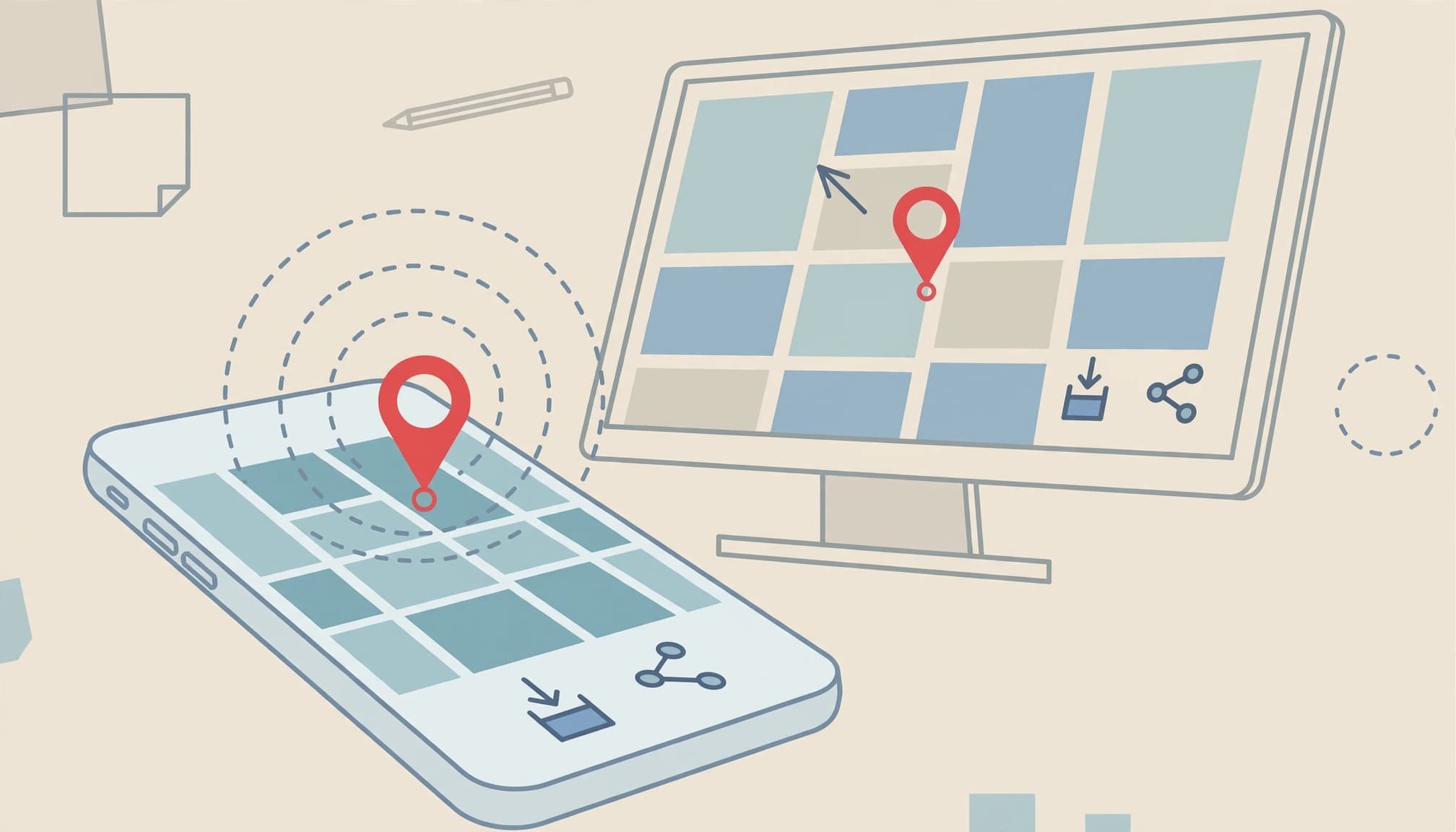
In the Google Maps mobile app on an iPhone or Android phone:
- Open Google Maps and zoom into the location.
- Press and hold, or tap and hold, an unmarked spot until a red pin appears.
- Open the info card at the bottom to access Save, Share, and Directions.
- Tap Save and select Favorites, Want to go, Starred places, or another available list. Use New list to create one.
- Tap Share, then Copy link, or use your phone’s sharing menu. Paste the link into WhatsApp, Messenger, email, or another app.
List names and button placement can vary. Travel plans may appear among available or previously created lists.
The recipient can open the link in Maps and request a route or route guidance. Tap another location or close the pin’s card to dismiss it.
Drop and Share a Pin on Desktop
Use Maps in a desktop browser when you need a larger view of a shopping center, business park, or rural property.
- Open Maps and zoom in on the exact location.
- Click an unmarked spot. A small gray pin and an info card with GPS coordinates appear.
- Open the card for more details, then choose a save or route-planning option.
- Select Share and copy the link to send it by email or messaging.
You can also right-click a location and choose What’s here? Some interfaces or instructions use “Drop a pin,” so the wording may differ.
Google Maps displays latitude and longitude. On desktop, right-clicking shows the coordinates, and selecting them copies them. On mobile, a dropped pin can reveal coordinates in the search field or location details.
Coordinates help identify an exact point. They don’t replace an accurate business address or automatically correct your public marker.
Troubleshoot Pin and Directions Problems
When a pin won’t drop
Press and hold an unmarked area rather than tapping an existing business label. Zoom closer when nearby labels make selection difficult.
If the map stops responding, refresh the browser or force-close and reopen the app. Install available Maps updates.
Your phone’s GPS isn’t required to select an arbitrary location manually. Location services matter when Maps needs your current position, such as when calculating a route that starts where you’re standing.
When directions or saved places are missing
Turn on location services and allow Maps access if your current position is inaccurate. For routing problems, enter a starting address manually and select a supported travel mode.
If a saved pin disappears, sign in to the same Google account used to save it. Check the Saved or You area; older instructions may call it “Your Places.”
A missing route-planning option on a business listing can also reflect a hidden service-area address rather than an app failure.
Understand Saved Places, My Maps, and Google Earth
A dropped pin is a selected location. Saving it adds that point to a list associated with your account. Saved places sync across devices when you’re signed in to that account.
Google My Maps is different from saving an individual pin. It lets you create a custom map with multiple locations, routes, and notes. There isn’t a current standalone My Maps app for Android, iPhone, or iPad; create custom maps through My Maps in a web browser.
A My Maps map can contain up to 10,000 places, lines, or shapes. Custom maps remain associated with your account and can be viewed on supported devices.
Google Earth supports placemarks with descriptions and notes. Depending on the version and workflow, you can export location information as KML or KMZ files.
These tools help organize locations. None replaces editing an inaccurate business marker through your Business Profile.
Measure Results After the Correction
First, confirm that the published marker and directions match your premises. Then compare visibility using the same search terms and geographic locations over time.
A single search outside your office isn’t a complete assessment. Track relevant searches across your genuine service area, along with calls, website visits, and requests for route help.
Our Google Business Profile optimization approach includes geographic visibility measurement rather than relying on one ranking snapshot.
Keep the business name, address, and phone number consistent across your website and social media profiles. Give AI voice receptionists and chatbots the same approved route details and visiting instructions so customers receive consistent information.
If visibility remains weak, review categories, services, reviews, website relevance, duplicates, and profile status. Don’t keep moving an accurate pin in search of a ranking increase.
Frequently Asked Questions
Can I move my pin to rank in another town?
Your marker should identify your real business location. Moving it elsewhere misrepresents the business. Adding a service area also doesn’t establish a physical location in that town.
Can customers suggest a correction?
Customers can use Suggest an edit on a public listing. Owners should manage corrections through their Business Profile when possible. Suggested changes may be reviewed before publication.
How soon will correcting the pin improve rankings?
There’s no guaranteed timeline or ranking improvement. Check whether Google published the correction and whether the route reaches the correct premises. Search visibility also depends on relevance, competition, prominence, and the searcher’s location.
Should I create another profile if the marker is wrong?
No. Correct the existing listing. Creating another profile for the same business location can create duplicates, confuse customers, and complicate management.
Keep Your Location Accurate Before Expanding Visibility
A correct marker gives customers reliable route guidance and removes an avoidable location error. It supports your local search foundation, but broader visibility still requires accurate profile information and relevant services.
Make targeted corrections, document them, and measure customer actions after publication.
For help reviewing your pin, profile setup, and nearby visibility, book a free discovery call: Schedule Call.