To fix broken links, find the affected URLs, confirm what went wrong, and then edit, point to a relevant replacement, or remove each link. Start with pages that generate leads, including your service, contact, and booking pages.
You don’t need an expensive subscription to begin. Free tools and a simple tracking sheet can handle the first review.
The priority is restoring useful paths for customers, improving user experience, and then cleaning up lower-impact errors.
Key Takeaways
- Check important customer journeys for broken links before working through every error.
- Verify flagged links manually because missing pages, blocked access, and server errors need different responses.
- Use permanent redirects only when a relevant replacement exists.
- Review links monthly and after major website changes.
1. Start With Links That Affect Leads
A broken link is a hyperlink to a page that no longer exists, usually returning a 404 Not Found status code. Images, PDFs, and other downloadable files can also have broken URLs.
Common causes include deleted pages, moved content, URL changes without redirects, spelling mistakes, and removed external resources, often called link rot.
Review Customer Paths First
Test your navigation, service pages, contact buttons, quote forms, and booking links. Then review destinations shared through social media, email campaigns, and your Google Business Profile.
A working homepage doesn’t help much if its appointment button leads to an error.
Prioritize Valuable Pages
Address broken links on pages with strong traffic, leads, or backlinks before an outdated reference in an older post.
Keep valuable service pages connected through relevant navigation and supporting content. Our guidance on internal linking for local SEO explains how those connections support discovery.
2. Find Broken Links With Search Console and Scanning Tools

Use Search Console alongside a link scanner. They answer different questions: which missing URLs Google knows about, and which links currently appear on your website.
Open Google Search Console
In Google Search Console, open Indexing > Pages, then select Not found (404). Google’s Page indexing report lists indexing information and crawl errors for URLs Google knows about.
Export the affected URLs. Use URL Inspection to examine important pages individually.
A listed 404 doesn’t automatically mean the URL should point to another page. It might be an intentionally removed page with no useful replacement. Our Search Console guide for local businesses provides broader guidance on interpreting these reports.
Scan the Links on Your Website
W3C Link Checker and Dead Link Checker offer accessible starting points for a site audit and can help identify dead links. Screaming Frog, Sitebulb, Semrush, and Ahrefs are other options for website audits.
Record both the broken destination and the page containing its link. Without the source page, you know what failed but not where to edit it.
A simple spreadsheet should include the source page, destination, status code, priority, chosen fix, and completion date.
3. Verify Each Error Before Changing Anything
Automated reports identify problems to investigate. They don’t always explain the cause.
Open the source page and follow the link yourself. For a flagged external resource, try opening its destination directly in a separate browser tab.
Understand the Status Code
Your scanner may display the HTTP status code, the server’s response to a request. You can also view it in your browser’s developer tools under Network.
A 404 error means the requested resource wasn’t found. A 403 means access is forbidden, which differs from a missing page. A 500 indicates a server problem.
A broken link is the hyperlink that fails; a 404 is one possible response. Don’t remove useful links simply because a temporary server issue triggered a warning.
Watch for Soft 404s
A page can display “page not found” while returning 200 OK, the response normally used for successful pages. Google describes this mismatch in its crawling-errors guidance.
For a genuinely missing page, return a proper 404. For content that should exist, restore the page and its useful information.
Also inspect redirected links. Reaching a live page isn’t enough if the destination no longer matches what the link promised.
4. Choose the Right Fix for Each Broken Link
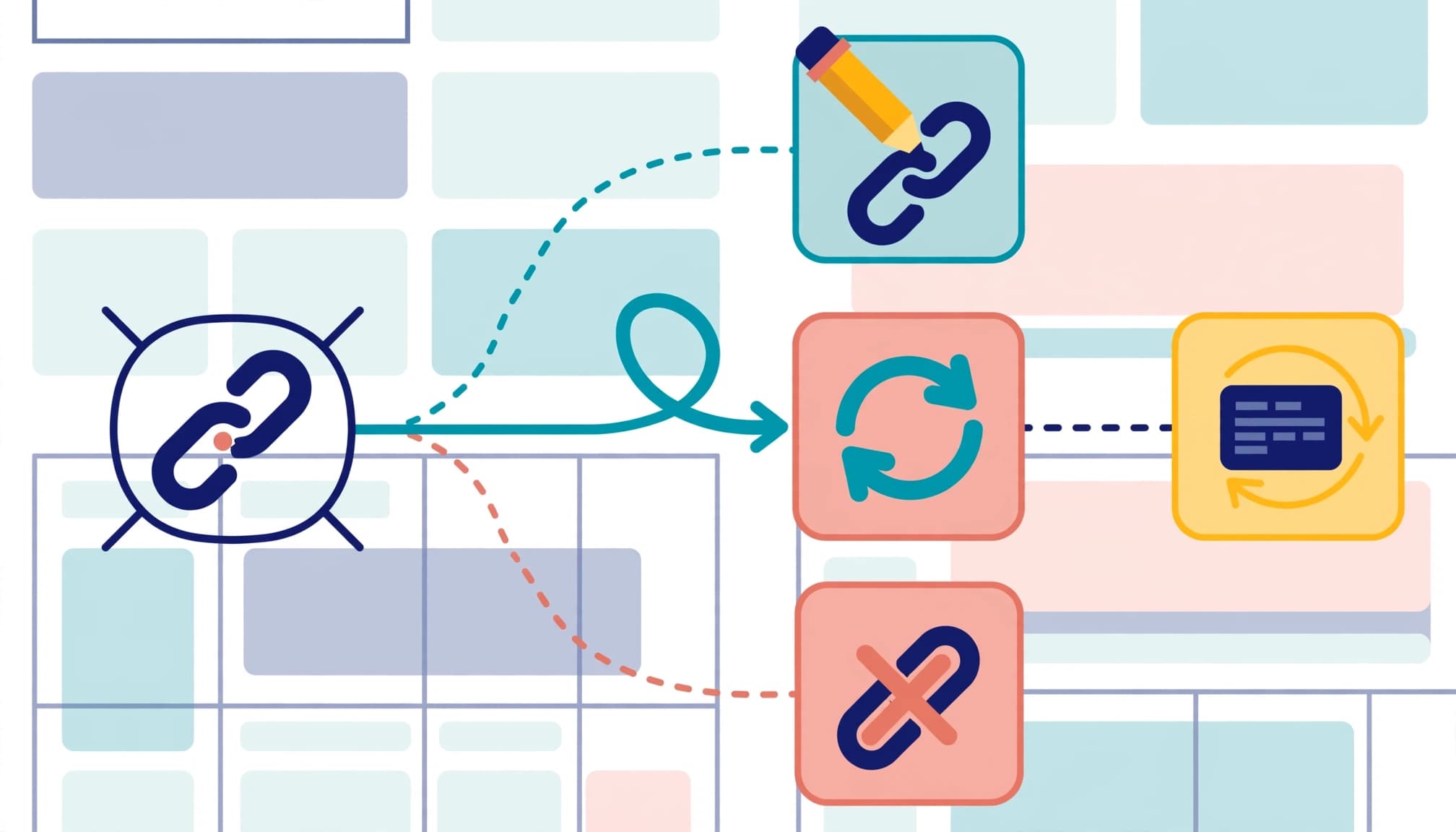
Use the destination’s purpose and value to choose a repair.
| Situation | Best action |
|---|---|
| The URL contains a typo or has changed | Edit the link |
| Your old page has a close replacement | Add a 301 redirect |
| Useful content was removed accidentally | Restore the content |
| An external source has disappeared | Replace the source |
| No useful destination remains | Remove the link |
The strongest fix takes visitors to the information they expected.
Edit or Replace the Destination
For a misspelled contact-page link, open the correct contact page, copy its URL, and replace the incorrect destination in the page editor. Test the saved link afterward.
For broken external links, locate the original publisher’s current resource. Read it before replacing the link so the surrounding statement still matches the source. If useful content was accidentally deleted from your site, restore it at its original URL.
Redirect or Remove the Link
A 301 redirect permanently sends an old URL to a relevant live page. It helps preserve link equity, the search value associated with links pointing to the old address. Google’s guidance on permanent redirects explains how search engines interpret them.
For merged service pages, point the retired address directly to the combined service page. Then update internal links to use that URL.
For an expired promotion with no equivalent offer, remove its link and revise the surrounding sentence. Keep a proper 404 if the page remains deleted.
5. Apply Fixes in WordPress or Your Hosting Tools
You can fix broken links without changing your entire website setup. Choose the method that matches where the problem lives.
Use WordPress With or Without a Plugin
For individual links, open the affected page or post, select the linked text or button, and replace or remove its destination. Save the change and test the published page. This doesn’t require a plugin.
For a larger review, use a broken link checker such as the Broken Link Checker WordPress plugin. Go to Dashboard > Plugins > Add New, install and activate it, then open its Broken Links screen. You can edit links, unlink text, or mark a verified false alarm as not broken.
Remember to inspect menus and other shared website elements. Fixing one link in a navigation menu can resolve the same issue across many pages.
Add Redirects Only Where Needed
Use a plugin or hosting tool to connect an old path to its replacement. Enter the old address, the relevant destination, and the permanent 301 option.
At the server level, Apache uses Redirect 301 /old-page followed by the new full URL. NGINX uses rewrite ^/old-page$ followed by the new full URL and permanent;.
These are configuration patterns, not complete rules to paste unchanged. If you don’t manage server files, use a redirect manager or have your developer apply them.
6. Test Repairs and Prevent Redirect Chains
After editing, click each repaired link on the published website, including on a phone. Confirm that the destination loads and offers the expected information.
Test the old address too. It should reach the intended page without passing through unnecessary intermediate URLs.
Update internal links to the final destination even when a redirect works. Visitors and crawlers shouldn’t need extra hops.
A redirect chain happens when one old URL redirects to another URL that redirects again. Change the first rule to point directly to the final page. Google’s site-migration guidance recommends avoiding chains.
Don’t send unrelated deleted pages to your homepage. A generic destination can confuse visitors and may be treated as a soft 404.
A custom 404 page can guide visitors to live service or contact pages while the missing URL still returns a proper 404 status.
After a redesign, compare old URLs with the live site, not only newly published pages. Our guide to recovering traffic after a redesign covers this repair process.
Update navigation, internal links, campaign destinations, and XML sitemaps so they use current URLs.
7. Set a Practical Link-Checking Schedule
For a small business website, a monthly review is a manageable baseline. It can catch newly broken links before they interrupt customer journeys. Larger sites with frequent publishing may need weekly or biweekly scans.
Run an additional review within 48 hours after a migration, redesign, or major content update. Test customer-facing links immediately after publishing changes rather than waiting for the next scheduled scan.
Keep your URL structure consistent and add appropriate redirects whenever you change an established address. Show contributors how to copy destination URLs, test links, and flag outdated resources.
Include booking URLs used by AI chatbots or voice receptionists in your review. Automated customer assistance still depends on accurate destinations.
Finally, maintain a repair log with the old URL, action, destination, date, and reason. It prevents repeated investigations and helps future contributors understand why a redirect exists.
Frequently Asked Questions
Do Broken Links Hurt SEO?
Broken links can prevent visitors and search engines from reaching useful pages. Large numbers can also waste crawl budget, while broken backlinks can interrupt the transfer of link equity.
For a small business, prioritize customer access and valuable pages rather than chasing a perfect report.
What Should I Do About Broken Backlinks?
When another website links to a missing page on your site, restore the content or add a relevant 301 redirect. You can also ask the website owner to update the link directly.
Broken link building is a related outreach tactic: suggest genuinely relevant replacement content when another site’s reference disappears.
How Quickly Will Google Remove a Dead URL?
Removal depends on when Google recrawls and processes the URL. It isn’t immediate. Keep the correct status code in place and monitor Search Console rather than expecting reports to clear overnight.
Keep Your Customer Paths Working
Fix broken links by restoring useful customer journeys, not by redirecting every error. Start with important pages, verify each issue, and choose the repair that matches the visitor’s intent.
If you need help prioritizing website repairs, book a No-cost discovery call with our team.
A consistent review schedule keeps small link problems from interrupting the next inquiry or booking.