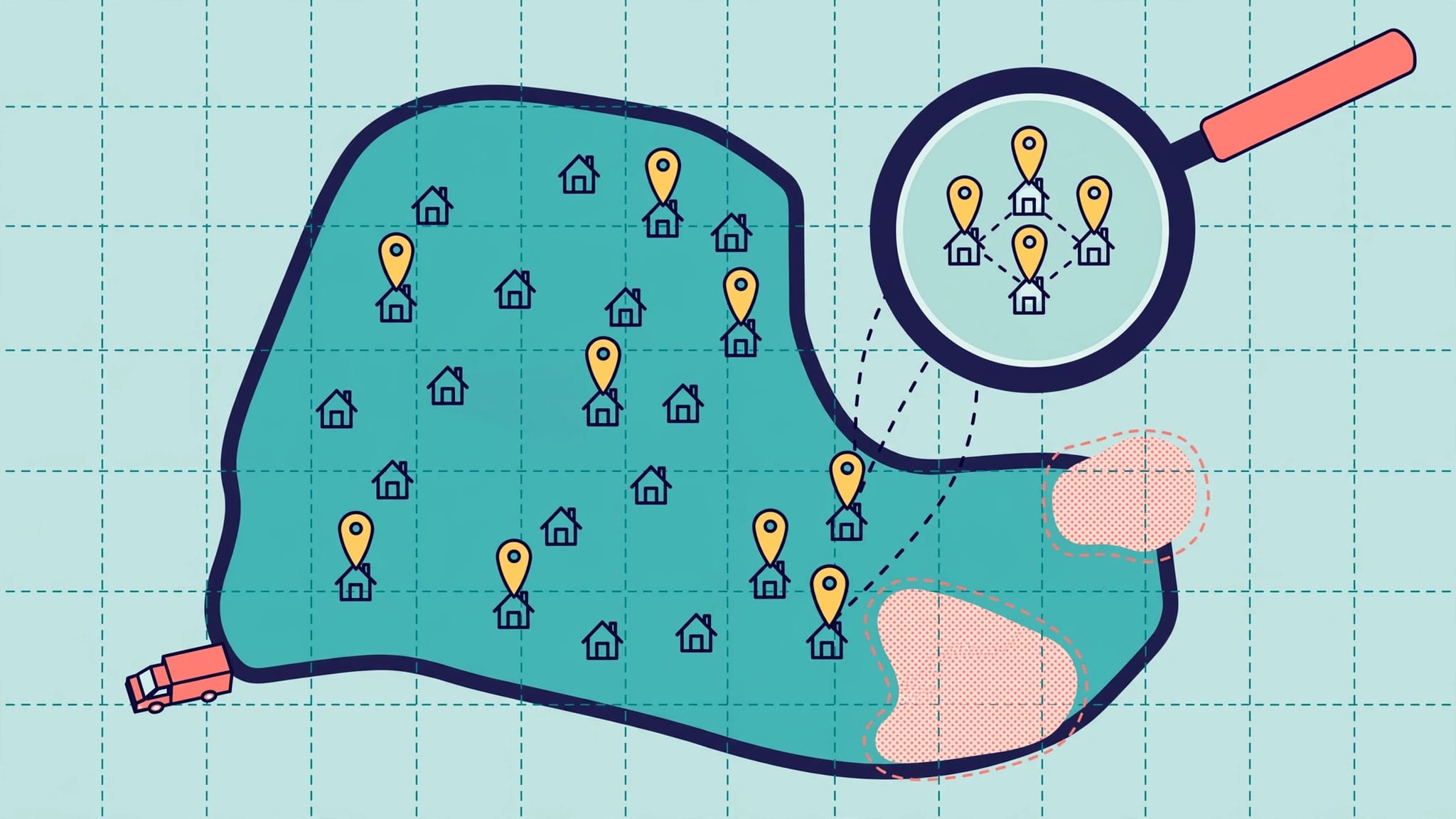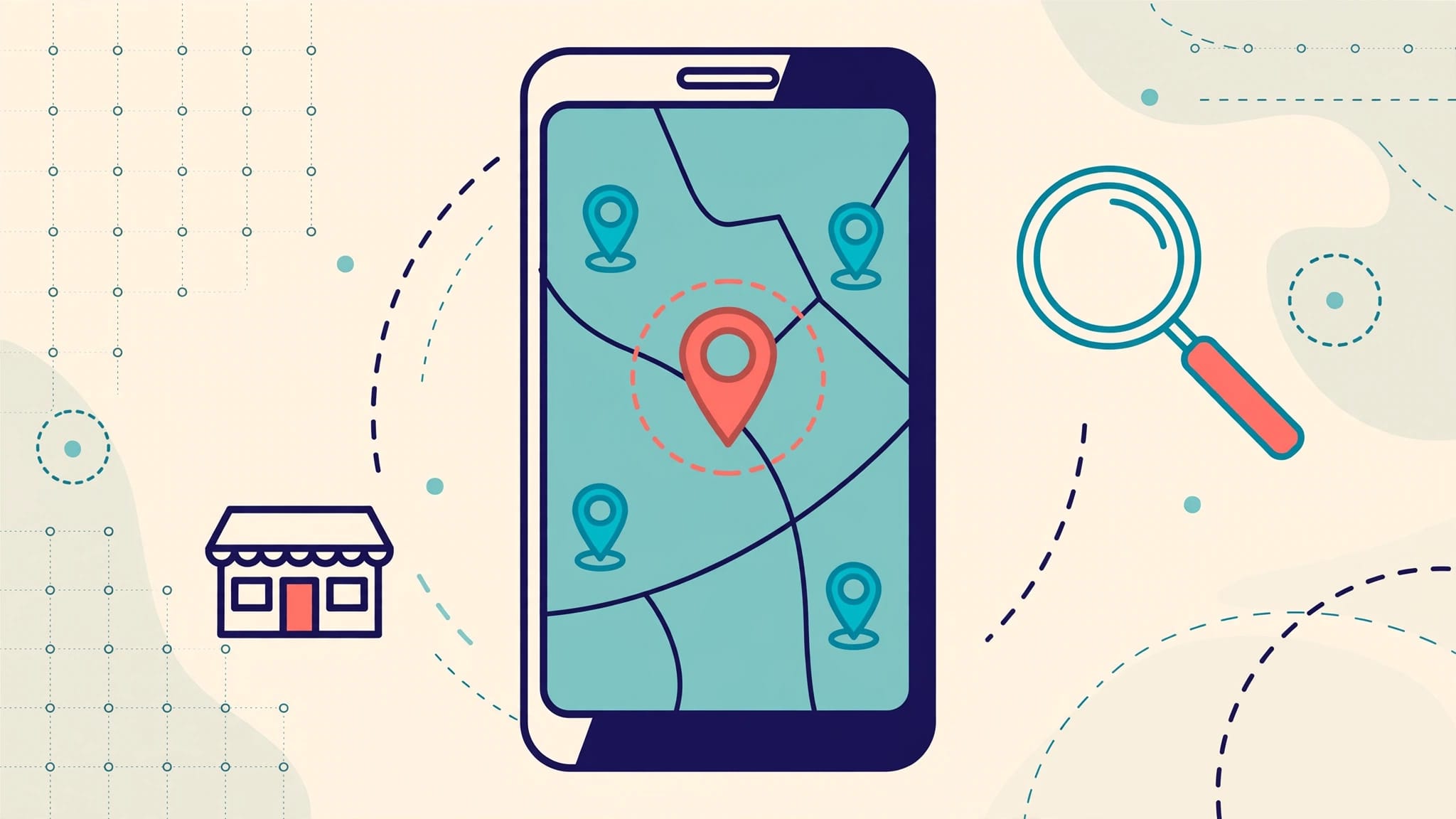
A customer searching for a nearby product or service often makes a decision before visiting a website. Google Business Profile Products can appear in local search results across Google Search and Google Maps, putting your most important offerings in front of that customer.
For local businesses, this feature works like a focused digital display and supports customer engagement. The current listing name replaced the former Google My Business listing. It helps customers see what you sell, what an item or service costs, and where to take the next step. Clear information can turn local visibility into calls, bookings, store visits, and qualified leads.
What Google Business Profile Products Do
Google Business Profile Products are individual offerings you add through Google’s product editor. Each listing can include a name, category, photo, price or price range, description, and link to a related page on your website.
Google may show these listings in a Products tab on mobile or a Product Overview area on desktop Google Search. Visibility can vary by device, search query, business category, and Google’s display choices.

The product editor is not real-time inventory
This manual feature works well for businesses that sell products without barcodes or need a simple product catalog. A boutique might highlight gift baskets, a salon might feature hair-care packages, and a contractor could present popular service packages if the Products option is available.
It is not a live inventory system. Don’t use it to manage stock that changes every hour, such as specific vehicle models, one-off collectibles, or limited shoe sizes.
Merchant Center handles inventory feeds
Merchant Center is better when you need product feeds, barcodes, store-level availability, pricing updates, or Local Inventory Ads. Google connects local inventory through product data, store codes, and feed or API-based updates. The product editor remains a manual showcase, and advertising activity follows Google’s separate shopping ads policy.
For retailers with a larger catalog, Google’s free local listings information explains how local product data can appear across Google. The editor supports a manual product catalog, while Merchant Center supports structured commerce data.
Which Businesses Should Use This Feature?
The product editor can help businesses with a focused set of offerings and a clear customer path. Start with the products or packages people ask about most often, not every item you’ve ever sold.
Retail businesses can feature proven sellers
Independent retailers, florists, specialty food shops, furniture stores, and gift shops can use product listings to make their profile more useful. Choose items that are consistently available and profitable, then organize them into product categories that match how customers shop.
A clear product name matters more than a clever one. “Custom birthday flower arrangement” is easier to understand than “Celebrate in Color Collection.” Customers should know what they’re viewing in seconds.
Service businesses should compare Products and Services
Service businesses should first check whether Products appears on their Business Profile. Google’s current product editor guidance describes the feature for merchants selling products without barcodes, so availability can vary by business categories and profile type.
For plumbers, dentists, attorneys, agencies, and home-service companies, the Services section is often the stronger starting point. Use services for clear job types such as drain cleaning, emergency dental exams, or electrical panel upgrades. Our guide to local SEO with Google Business Profile explains how focused service entries help customers find the exact work they need.
How to Add Products to Your Business Profile
Before adding anything, confirm that your Business Profile’s name, hours, phone number, website, category, and service area are accurate. A product link can’t fix a profile that sends customers to the wrong phone number or a closed location.
Add products from desktop search
On desktop, sign in to the Google account that manages your listing. Search for your business and open the Business Profile. Select View profile if it appears, then choose Edit products to open the product editor.
Add the product details, review the category and link, then select Publish. Google reviews profile updates, so approval and visibility aren’t guaranteed immediately. Keep each item tied to a page that matches what customers expect to find.
Use a direct landing page whenever possible. A customer who clicks a lawn treatment package should land on lawn treatment information, not a generic homepage.
Add products from a mobile device
In the mobile version, open your profile and select Edit profile, then Products, followed by Add product. Labels may vary slightly by device or account. This workflow is better for quick updates than large catalog work.
Use a simple review process before publishing:
- Confirm the item is available and accurately priced.
- Use high-quality images that show the actual product, service result, or package.
- Test the website link on a phone.
- Remove claims that can’t be proven or supported.
Google’s business representation guidelines apply to profile content. Product policy violations can lead to the removal of every product you uploaded, not only the item that triggered the issue.
Build Product Listings That Drive Better Local Leads
Product listings should answer three customer questions: What is it? Is it right for me? What should I do next? Each one should include a clear call-to-action, such as calling, booking, requesting a quote, or visiting a focused page. If the listing creates confusion, it adds friction instead of helping your SEO.
Use product categories and descriptions with a purpose
Create product categories around how customers shop, not your internal terminology. A bakery could use “Custom cakes,” “Breakfast pastries,” and “Corporate catering.” An HVAC company could group maintenance plans, thermostat installation, and indoor air-quality services.
Your product description should explain the scope, core benefit, inclusions, limitations, and relevant service details without repeating city names unnaturally. If an installation package includes labor, permit coordination, and a warranty, say so.
A focused catalog builds confidence faster than a long list of vague, overlapping offers.
Use original images and accurate prices
Use high-quality images that help customers recognize the offer. A real project photo, package photo, or service-result image is stronger than a generic stock image. Avoid adding text-heavy graphics that are difficult to read on a phone.
Only show pricing information when it is accurate and easy to explain. If every job requires an estimate, use a truthful price range or direct customers to request a quote. Update seasonal offers before they expire.

Track Website Traffic From Product Links
Google Business Profile views are useful, but they don’t show which links drive website sessions, form submissions, or booked appointments. UTM tags give Google Analytics 4 cleaner attribution.
Use consistent UTM tags and parameters
Add consistent parameters to each website link from your Google Business Profile. Keep everything lowercase and use a naming pattern your team can maintain.
For a product link, these UTM tags work well:
?utm_source=google&utm_medium=organic&utm_campaign=gbp_products&utm_content=custom_cakes
For multi-location businesses, add a location name to the campaign or content value. This makes it easier to compare traffic from each profile without mixing it into generic Google organic traffic.
Measure actions, not only clicks
Review product-link traffic in Google Analytics alongside form submissions, appointment requests, calls, and closed revenue. A listing that earns fewer clicks but serves as a stronger call-to-action may be more valuable than a popular item that generates no business.
Use UTM tags to compare product-link traffic with your website, appointment links, Google Posts, email campaigns, and social media. AI chat bots and voice receptionists can also capture after-hours requests when a customer clicks through but isn’t ready to call during business hours.
For support with profile structure, attribution, and conversion paths, contact our team for Google Business Profile lead generation services.
Fix Products That Do Not Appear
A product may be published but not appear consistently in local search results across queries, devices, or profile views. Google controls how and where profile content is displayed, so don’t judge visibility from one search alone.
Check approval status and profile accuracy
Open the product editor and review each item. Confirm it’s published, complete, attached to the correct Business Profile, and consistent with Google’s policies.
Google’s product approval policies are the right place to review items that are pending, rejected, or missing. Also check for outdated pricing, misleading language, prohibited content, and broken website links.
Use this troubleshooting checklist
| Problem | Likely cause | Practical next step |
|---|---|---|
| Product is missing on desktop | Google isn’t showing the module for that search | Check mobile, branded search, and the profile editor |
| Product isn’t visible anywhere | It’s unpublished, pending, or removed | Review product status and policy compliance |
| Price or availability changes often | Manual updates can’t keep pace with live inventory | Use a feed-based system such as Merchant Center or Local Inventory Ads |
| Customers click but don’t convert | The landing page doesn’t match the offer | Link to a focused page with a clear contact option |
Keep products, services, photos, and website pages aligned. Ongoing profile care matters because outdated details can send ready-to-buy customers to a dead end.
Key Takeaways for Local Search
Google Business Profile Products give local businesses a simple way to highlight important offers directly in search. They can support customer understanding and engagement, but they do not guarantee rankings or replace a complete local SEO strategy.
Use the product editor for stable, easy-to-explain offerings. Use Merchant Center when you need inventory feeds, local availability, and commerce-focused ads. Keep links tracked, prices accurate, and categories focused on what customers actually want.
Your profile works best when products, services, reviews, photos, website pages, and response systems all point toward the same next step.
Frequently Asked Questions
Can I edit or remove an existing product?
Yes. Open Edit products, the product editor, select the item, make your changes, and choose Publish. To remove an outdated product, select the item, open the menu, and choose Delete.
Review products at least quarterly. Update them sooner when pricing, availability, service packages, or landing pages change.
Why are my products not showing on Google Search?
Google doesn’t guarantee that every product appears for every query, device, or location. First, verify that the product is published and approved. Then check your profile on mobile and desktop, search your business name, and confirm you’re viewing the correct location.
If you also use Merchant Center, maintain separate update processes. A product in your Business Profile doesn’t automatically synchronize with Merchant Center inventory.
Can product listings replace my Services section?
No. Products and Services have different jobs. Use product listings for stable, tangible items or defined packages when the feature is available. Use Services to explain the work your business performs.
A local electrician, for example, may list panel upgrades and generator installation as services while using products only for stable, customer-facing packages.
Make Your Profile Easier to Choose
The strongest product listings aren’t the longest catalog entries. They’re accurate, focused, visually clear, and connected to a useful next step.
A customer looking for help nearby wants fast answers. Give them a clear offer, an easy call-to-action, and a Business Profile that matches the experience they’ll receive. Ready to improve your product listings and local lead flow? Schedule Call or book a No-cost discovery call.