To boost your local appointments, add a direct booking link to your Google Business Profile so customers can schedule instantly from Search or Maps. Choose a mobile-friendly, dedicated booking page URL—not your homepage—and test it regularly to ensure a smooth experience. This simple step cuts friction, increases qualified leads, and supports your local SEO goals.
A customer searches for your service, finds your business, and is ready to book. If they have to hunt through your website for an appointment page, that momentum can disappear fast.
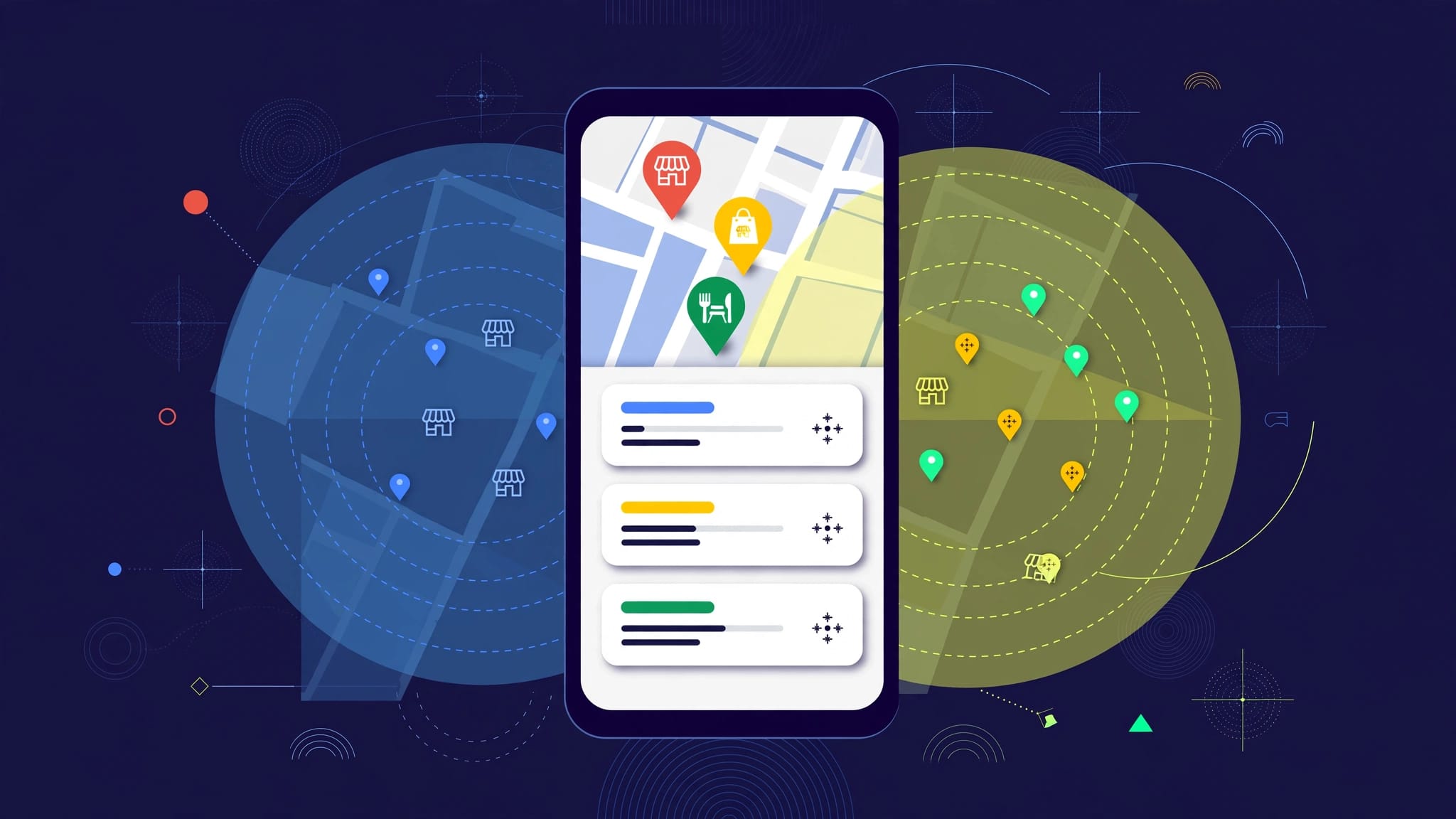
Google Business Profile booking links give customers a direct path from Google Search or Google Maps local search results to your scheduling page. For local businesses, that can mean fewer missed opportunities and more qualified appointments.
The setup is simple, but the link you choose and the way you test it matter.
Key Takeaways
- Add a direct scheduling URL by selecting the edit profile option within your Google Business Profile to locate the Bookings section.
- A custom booking link is different from the native blue Book button offered through eligible Reserve with Google providers.
- Test the entire booking path on a mobile phone before you promote it to your customers.
- Keep your services, business hours, reviews, and booking page details accurate to support your local SEO strategy.
- Track bookings separately from general website visits so you can see whether your Google Business Profile is producing real leads.
Understand Your Booking Link Options First
Google currently gives many eligible businesses two ways to help customers make appointments. The first is a manual link to your existing booking page. The second is a Reserve with Google integration, which connects your profile to a supported online booking system.
A manual link is the most practical option for many service businesses. You paste the direct URL to your calendar, appointment page, consultation form, or scheduling software into your profile. The customer then leaves Google and completes the booking on your website or platform.
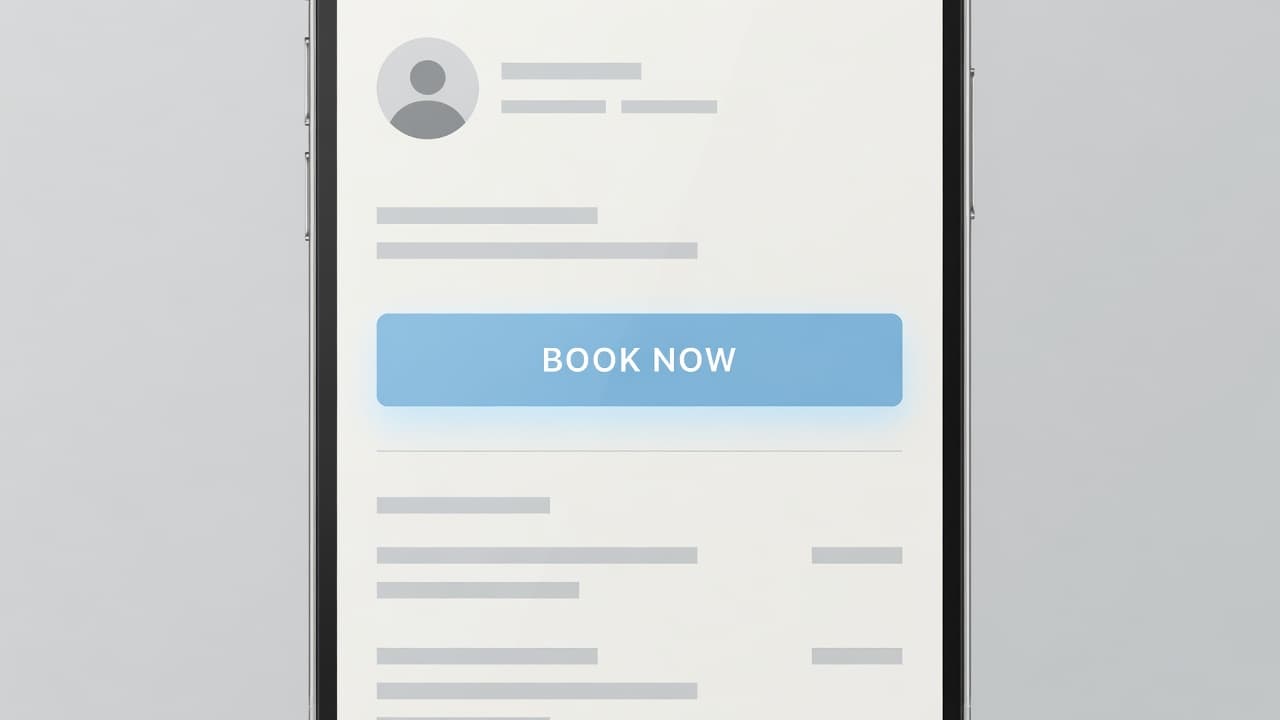
The native booking button works differently. It is connected to participating Reserve with Google partners, which may include platforms such as Square Appointments, Mindbody, or Fresha. When you utilize a third-party provider, customers may see appointment options directly on your profile without needing to navigate through your website.
Google does not offer every booking feature to every business. Availability can depend on your specific business category, location, verification status, and scheduling provider. Restaurants, salons, fitness studios, activity businesses, and certain local service categories often have more booking options than other industries.
A booking link should take customers directly to a page where they can choose a service, date, and time. Do not send them to your homepage.
Google’s booking provider guidance explains how eligible businesses can connect third-party platforms through its booking system.
Prepare the Right Booking Page Before You Add It
Your Google Business Profile can bring people to the door, but the destination page has to finish the job. A slow, confusing page can waste the visibility you worked to earn.
Start with a dedicated booking page instead of a broad website URL. If you use Calendly, Square, Booksy, Setmore, or a custom appointment system, copy the exact page where a customer can book. For example, send a prospect to the consultation calendar, not the general Contact page.
Mobile optimization is a critical step because most people who find local businesses in Google Maps are not sitting at a desktop computer. They are comparing options, checking hours, and looking for a fast answer on their smartphones.
Review these details before adding your link:
- The booking page uses HTTPS and loads without an error.
- Customers can see real-time availability before completing a long form.
- Your services, pricing expectations, and appointment length are clear.
- Confirmation emails or text messages are working correctly.
- The business name and contact details match your Google Business Profile.
A local customer should not need to guess whether they are booking the right service. Clear service names reduce abandoned appointments and prevent avoidable phone calls.
If you use AI, voice receptionists, or chat bots, connect them to the same appointment process. A chat bot should offer the booking link when someone asks about availability. A voice receptionist should be able to direct callers to the same calendar or book within your approved workflow. That consistency gives customers a better experience across Google, your website, and social media.
Add a Booking Link Through Google Search
Google has streamlined the process for updating your listing, meaning you no longer need to navigate the legacy Google Business Profile Manager to handle these changes. You can now manage most aspects of your business presence directly through Google Search.
Follow these steps on a desktop or mobile browser to update your information:
- Sign in to the Google account that owns or manages your Google Business Profile.
- Search Google for your exact business name.
- Select View profile if Google shows that option.
- Look for the edit profile button or the Bookings option in the management controls.
- Select Bookings.
- Choose Add link. If a link already exists, choose Add another link.
- Paste the direct URL to your booking or appointment page.
- Select Save and wait for Google to review the change.
The labels can look slightly different depending on your business category and the device you are using. Some business owners see Bookings directly in the profile management menu, while others may find it tucked within the edit profile or business information sections.
Google may take a day or two to process a new manual link. Do not assume it failed because you cannot see it immediately. Check again while signed out, in an incognito browser window, or from another device.
Google’s Business Profile community guide for booking links also covers removing or replacing an existing link.
Add or Check Booking Links in Google Maps
Google Maps is where many local customers make a final decision. They may check your reviews, view photos, compare hours, and choose whether to contact you in less than a minute.
To manage your profile in Google Maps, open the Google Maps app or visit the platform in a browser while signed in to the correct account. Search for your business name, then open your business profile.
Look for options such as edit profile, Business information, Bookings, or Manage your Business Profile. If the Bookings field is available, add the same direct scheduling URL you use in Google Search and save the update. This link serves as the landing page for your customers, ensuring they move from the search interface to your services seamlessly.
After Google publishes the link, test it in Google Maps as a customer would. Search for your business from a phone that is not logged into the owner account. Open the profile, tap the booking option, and complete a direct action that initiates the scheduling process if your platform allows it.
Check these points during the test:
- Does the link open on the correct service or calendar page?
- Is the call-to-action visible without excessive scrolling?
- Can a customer complete the process without creating unnecessary accounts?
- Do confirmation messages arrive as expected?
- Does the page match the service, city, and business shown on Google?
A booking link that works only on desktop is not ready. Mobile testing should be part of every profile update.
Manual Booking Links vs. Reserve With Google
Both options can help generate new appointments, but they operate as distinct features.
| Option | How it works | Best fit |
|---|---|---|
| Manual booking link | Sends customers to your own scheduling URL | Businesses using any public booking page |
| Reserve with Google | Integrates through an eligible scheduling partner to show a native booking button | Businesses in supported categories using a participating provider |
| Request appointment link | Directs a customer to a consultation or inquiry form | Service providers who qualify leads before scheduling |
The manual method provides more control over your booking page, tracking, branding, and follow-up process. It also remains the most flexible choice for a service-area business that needs to direct clients to specific landing pages.
Reserve with Google can reduce friction for the customer, but it relies on strict provider eligibility. You should not switch your entire workflow just to secure a native booking button on your profile. Before making the move, confirm that the platform fully supports your business category, location, service menu, and data requirements.
If you prefer to keep your systems separate, you can use a manual appointment link to maintain your current processes. However, if you decide to use Reserve with Google, ensure your third-party software is correctly synced so that the booking button functions accurately for your visitors.
If you offer multiple services, use separate links only when each destination is clear. A med spa may need different links for consultations and treatment appointments, while a contractor might need one link for estimates and another for emergency service requests.
Too many choices can create confusion for potential clients. Start with the booking path that consistently brings in your highest-value appointments and optimize from there.
Track What Happens After Customers Click
A booking link is not a set-it-and-forget-it feature. It needs regular review, especially if you update your website, scheduling platform, services, or office hours.
Use Google Business Profile performance metrics to monitor actions on your listing. Then, compare that information with data from your booking platform, Google Analytics 4, and your CRM. While tracking total website traffic is useful, focusing on your conversion rate for completed appointments provides a much clearer picture of your success.
Add UTM parameters to a manual booking URL when your platform and reporting setup support them. This lets you identify appointments that started from your local knowledge panel instead of another source.
For example, your booking tool may show whether a customer came from Google Maps, Google Search, email, or social media. That information helps you decide where to focus your marketing budget.
Review the booking process at least once a quarter. Update links after a website redesign, scheduling platform change, or service menu update. Broken links can cost leads without triggering an obvious warning.
Your broader local SEO work also affects booking results. Keep your category, service list, phone number, photos, reviews, and hours current. Google needs accurate information before it can confidently show your business to people looking for an appointment.
If your profile gets views but few calls or bookings, the issue may be the page after the click. A No-cost discovery call can help identify whether your profile, booking flow, mobile experience, or tracking setup is losing leads.
Fix Common Booking Link Problems
The most common problem is using the wrong URL. A homepage forces customers to search for the booking option again, so you should replace it with the direct appointment page instead.
Another issue is expecting a manual link to create Google’s native blue “Book” button. It will not. That button is reserved for eligible Reserve with Google integrations. A manual link may appear as a booking or appointment option instead.
Some business owners cannot find the Bookings field at all. First, confirm that you have a verified profile and that you are signed in as an owner or manager. If you are using an older dashboard version, check the info tab to see if the settings are tucked away there. Additionally, review your primary business category and country availability. Google may not offer booking links for your specific industry or location.
If Google rejects or removes the link, check for redirects, login walls, broken security certificates, or pages that do not clearly relate to your business. Keep the destination professional and easy to use to ensure your potential customers have a smooth experience.
Frequently Asked Questions
Why isn’t the “Book” button appearing on my profile?
The native blue “Book” button is only available to businesses using eligible third-party software integrated through Reserve with Google. If you are using a manual link to your own booking page, your link will typically appear as a standard appointment link rather than the native system button.
Should I link to my business homepage instead of the booking page?
No, you should always link directly to a specific appointment or consultation page. Sending customers to your homepage creates unnecessary friction and forces them to search for the booking option, which often leads to lost appointments.
How long does it take for my booking link to appear after I add it?
Google may take 24 to 48 hours to process and publish new booking links on your profile. If your link does not appear immediately, wait a couple of days and verify the update by checking your profile in an incognito browser window.
How often should I check my booking link?
You should test your booking path at least once a quarter, or anytime you update your website, scheduling software, or service menu. Regular testing ensures that your link remains active and that customers are not encountering broken pages or expired appointment slots.
Make Booking the Easy Next Step
Adding a booking link to your Google Business Profile turns your local visibility into a clear next action for potential clients. The strongest setup uses a direct URL, a mobile-friendly scheduling page, and reliable tracking to ensure your conversion process is seamless.
Do not let a customer who is ready to book get lost in extra clicks. By maintaining a clear booking link, you ensure that potential leads can quickly secure an appointment. Keep the path short, test your link often, and make every appointment option match the service you promise on your Google Business Profile.